Sending Files with File Exchange
Last updated: September 24, 2026
Send us a data file of any size, right from Texture, and track it until it lands.
File Exchange lets you send a data file to Texture directly from the platform — no email attachments or third-party transfer tools. It accepts files up to 10 GB, uploads in the background while you keep working, and shows live progress until it's done.
Sending a file
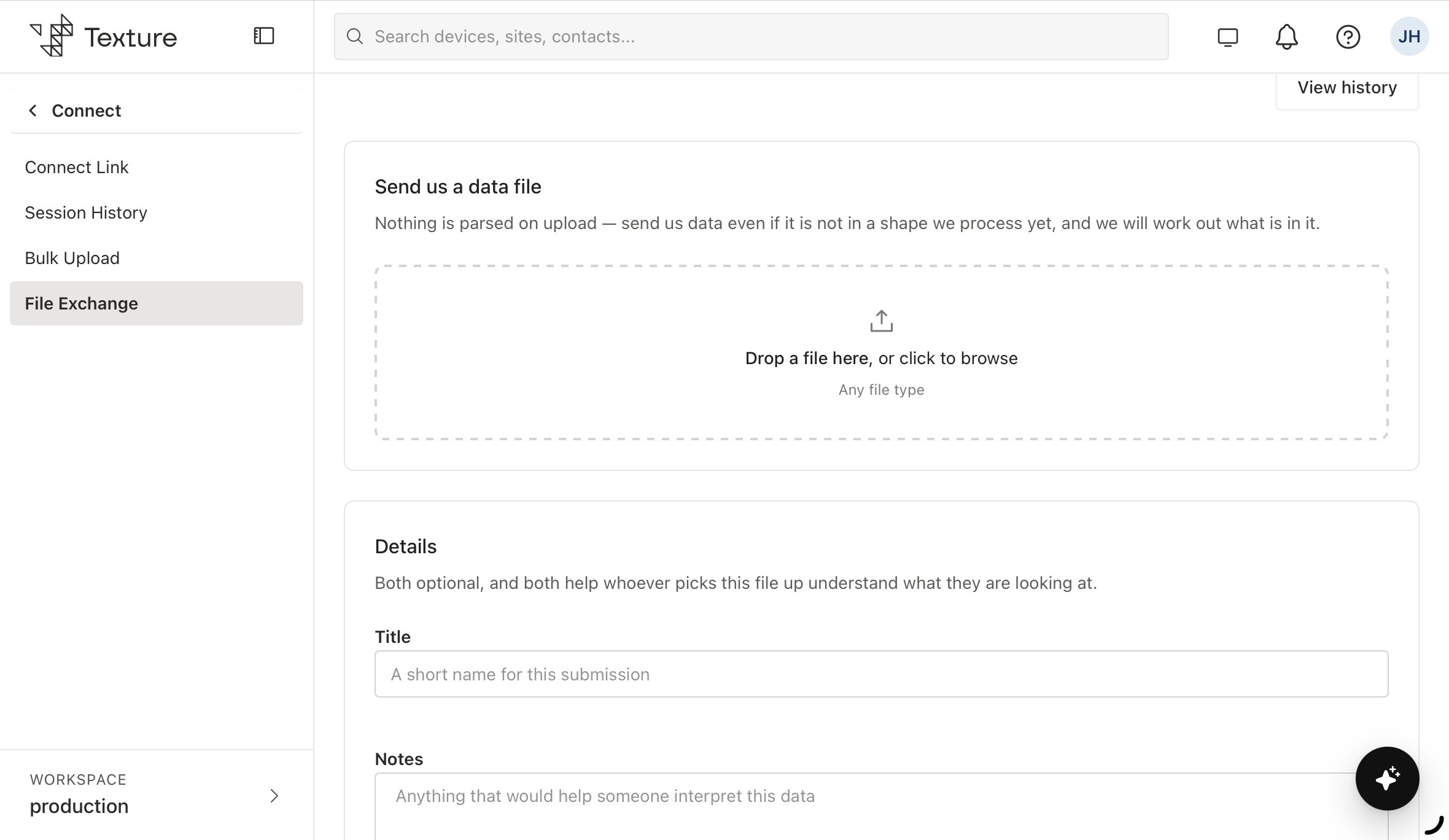
Go to Connect, then File Exchange. From the left navigation.
Drop your file, or click to browse. Any file type is accepted, up to 10 GB — you don't need to split or compress large exports first.
Add a title and notes (optional). A short title and any notes that would help whoever picks up the file understand what's in it.
Click Upload. The file starts uploading in the background, so you're free to keep working elsewhere in Texture while it finishes.
Tracking progress
Once an upload starts, check its progress anytime from the notification bell in the top navigation. It shows the file name, how much has uploaded, and a Cancel option if you need to stop it.
Good to know
Up to 10 GB per file. Large exports and full history pulls can go straight through File Exchange.
Nothing is parsed on upload. Send data even if it's not in a format we process yet — use the notes field to flag what it is, and we'll work out how to use it.
Runs in the background. The upload continues while you navigate elsewhere in Texture; the notification bell keeps you posted.
Session history is kept. Past submissions are available under Session History in the same Connect section.