Accessing the support portal
Last updated: June 26, 2026
Support runs through the Texture support portal (powered by Pylon) at support.texturehq.com. From the portal you can submit tickets, track their status, and see your open and closed issues. You log in with your email and a one-time code — no password. Here's how.
Log in and submit a ticket
Go to the portal. Open support.texturehq.com.
Enter your email. Type your email address and click Send Code.
Get your code by email. You'll receive a “Portal Verification Code” email (from notifications@usepylon.com) with a 6-digit login code.
Enter the code. Type the 6-digit code and click Continue. If it doesn't arrive, use Resend.
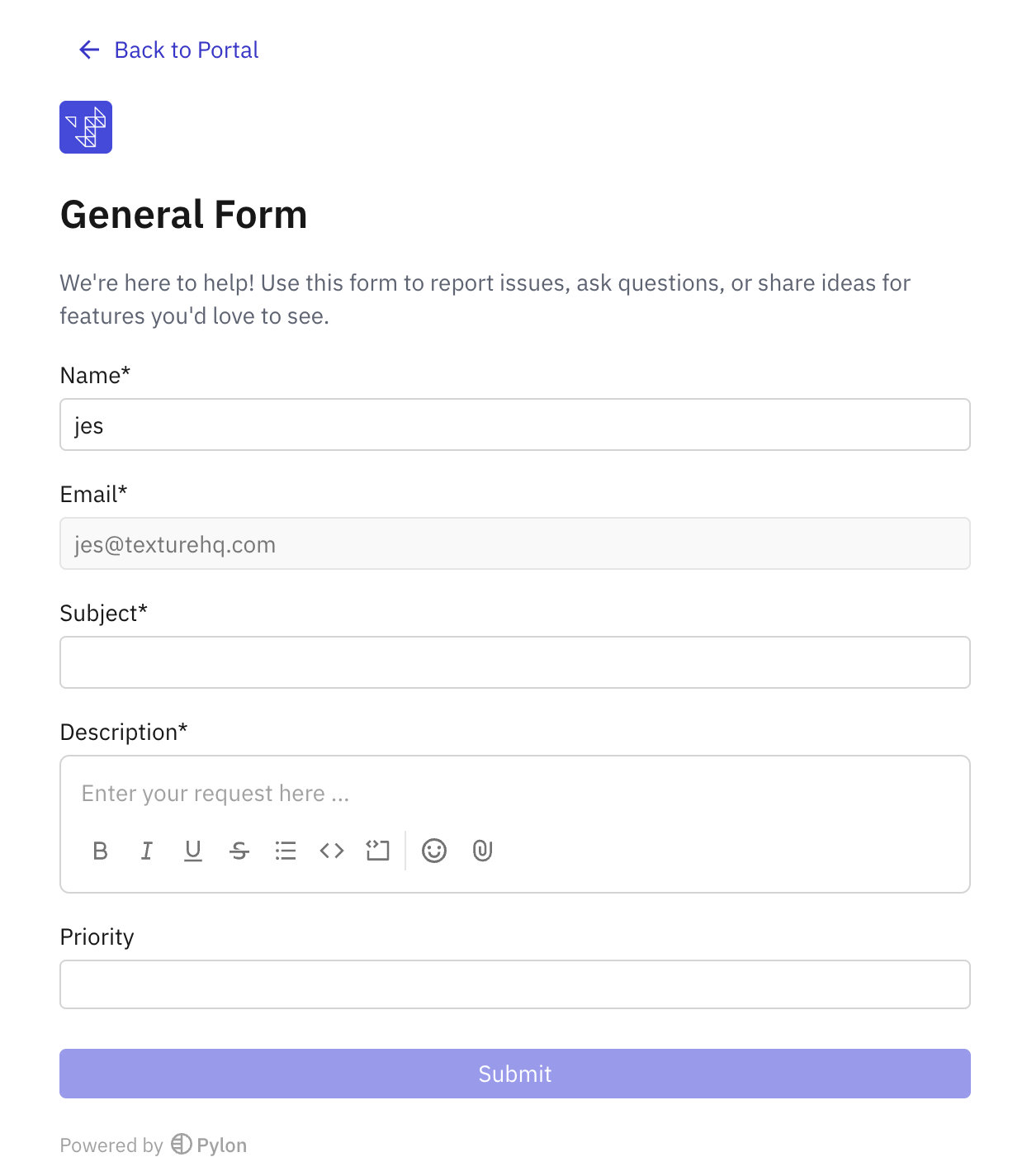
Submit a ticket. Click Create Ticket (or open the General Form), then fill in Name, Email, Subject, Description, and Priority and click Submit.
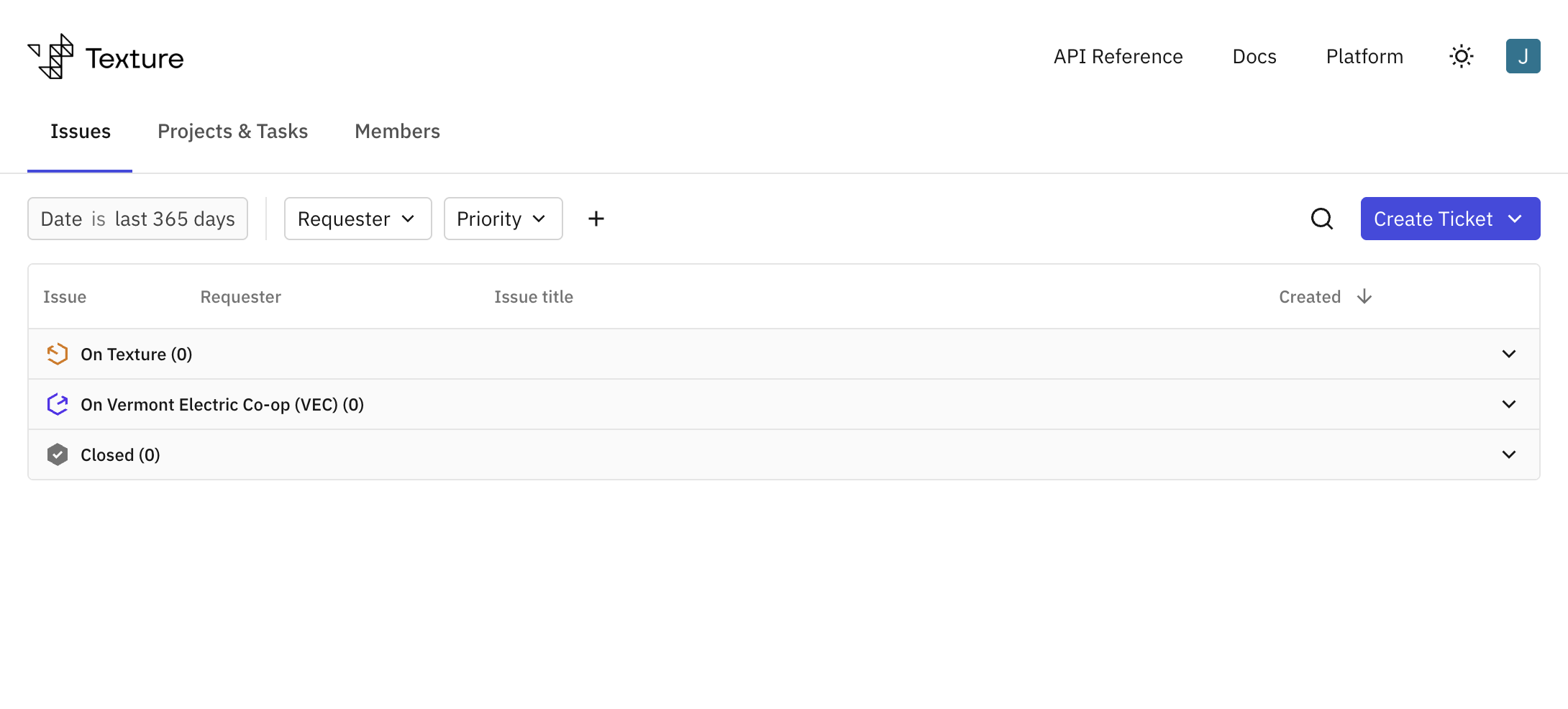
Track your tickets. In the portal, your issues are grouped by status — for example On Texture, On [your organization], and Closed. Use the Projects & Tasks tab to follow project status.
Good to know
Log in with email + code. There's no password — you get a fresh 6-digit code by email each time (from notifications@usepylon.com).
Track status in the portal. Issues are grouped (On Texture / on your organization / Closed), and the Projects & Tasks tab tracks ongoing work.
Same team, three ways. The portal, in-platform chat (powered by Pylon), and the Slack community all reach the same team and the same tickets.
Prefer tickets over email. Submitting through the portal keeps everything tracked and triaged.