Accepting your Texture invite
Last updated: June 26, 2026
When someone adds you to a Texture organization, you'll receive an invitation email. Accepting it gets you into the platform. How you finish depends on whether your organization uses single sign-on (SSO) — the steps below cover both.
Accept your invite
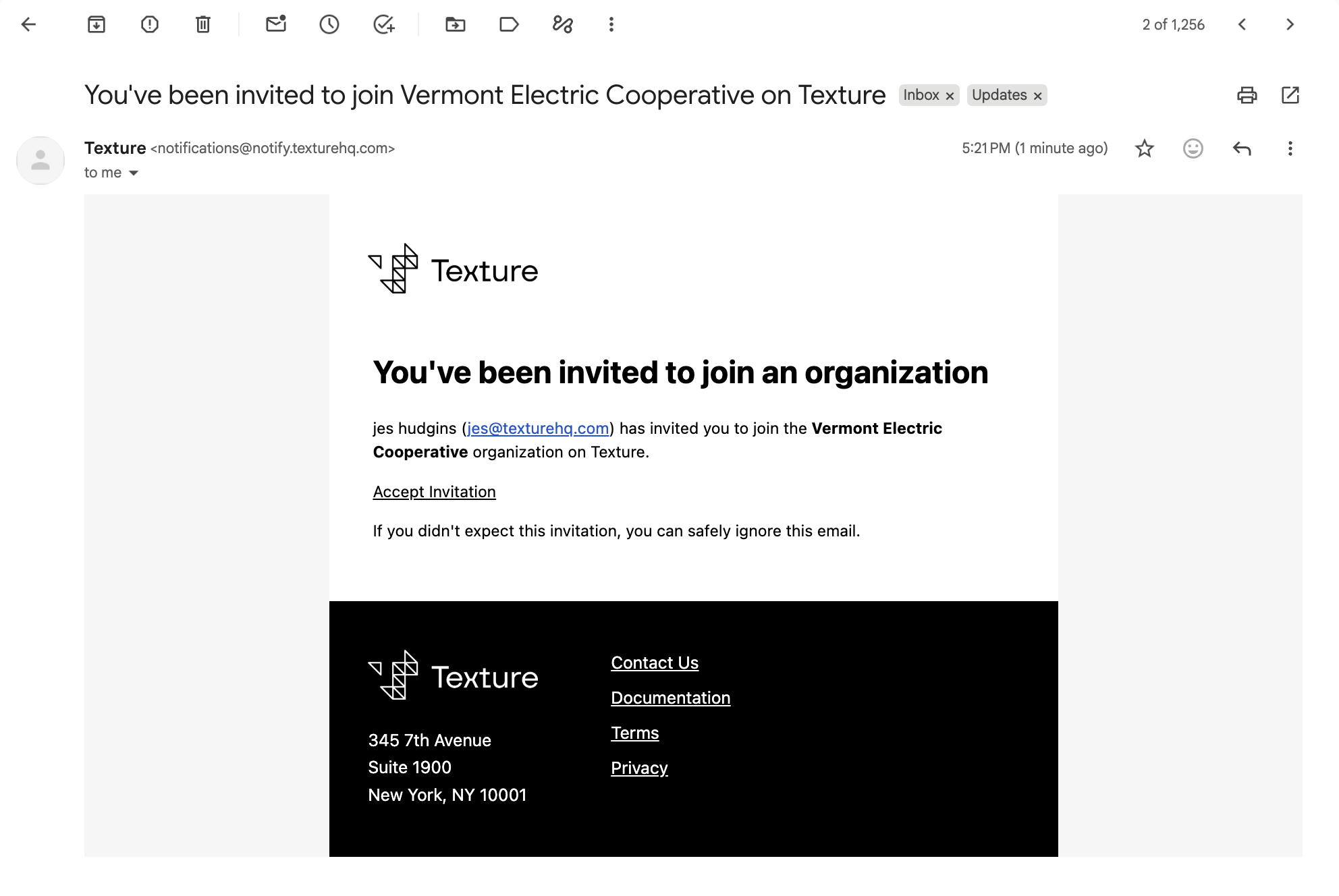
Open the invitation email. It's from Texture (notifications@notify.texturehq.com), subject “You've been invited to join … on Texture.” Click Accept Invitation.
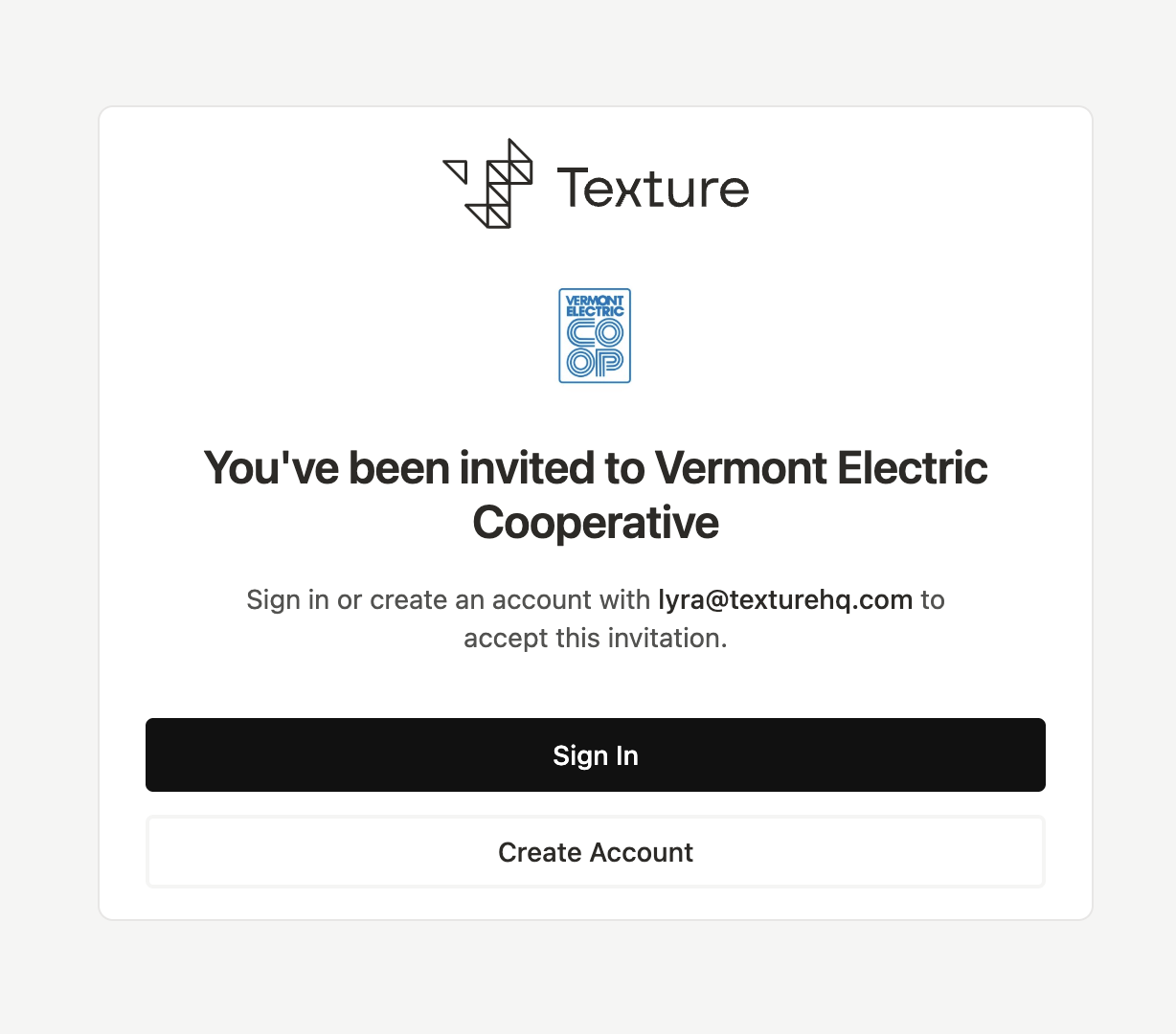
Choose how to continue. On the invitation page you'll see your organization and two options — Sign In if you already have a Texture account, or Create Account to make one. Use the email the invite was sent to.
Creating a new account
If you don't have a Texture account yet, create one from the invitation.
Click Create Account. This opens the Join Texture form.
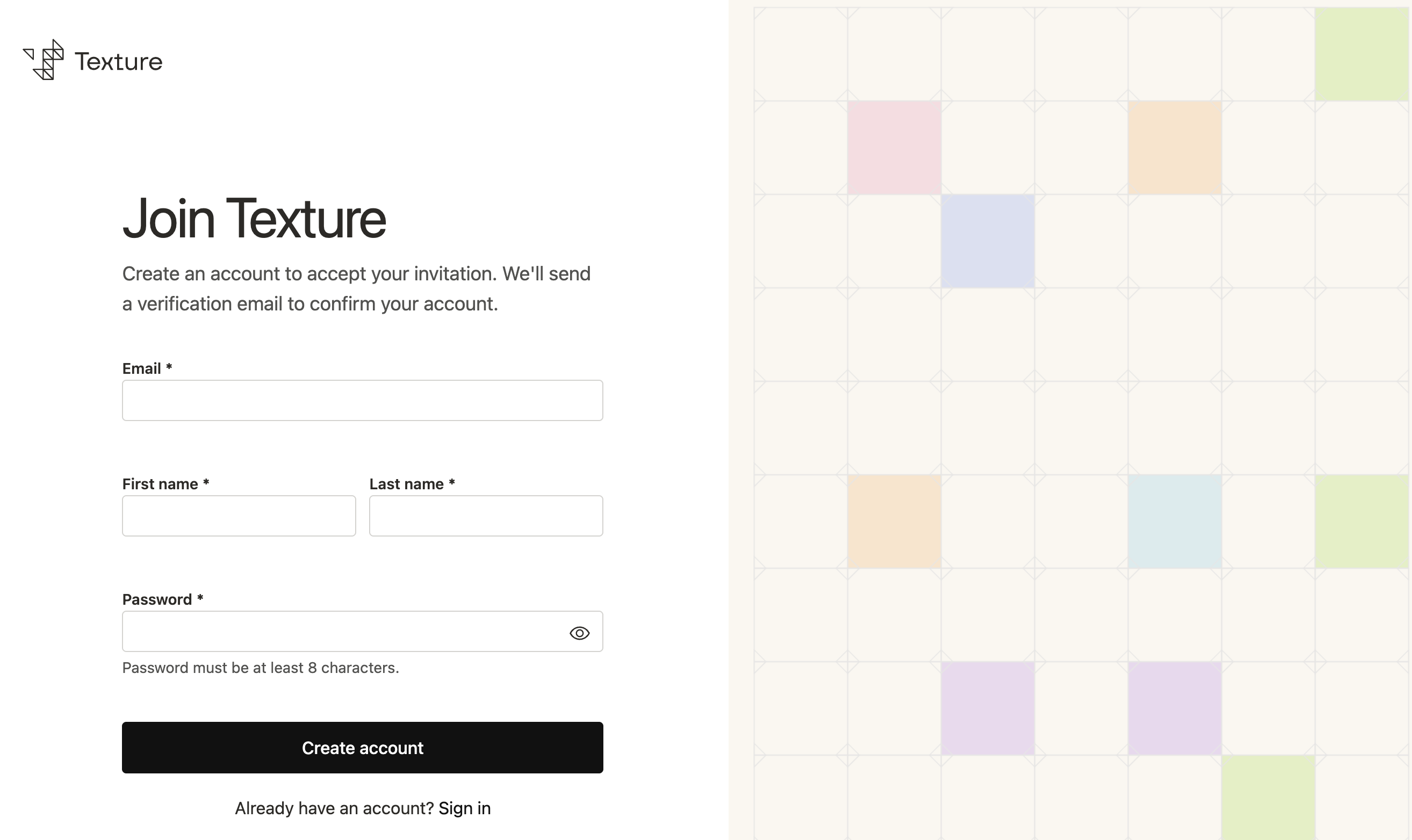
Fill in your details. Enter your email, first and last name, and a password (at least 8 characters), then click Create account.
If your company enforces SSO, the password here will become obsolete if you accept the invite versus access the Platform from your IdP (Okta) directly.
If you access the Platform from your IdP (Okta) you will not need to accept the invite email or create an account if your organization enabled Auto-create users on first sign-in.
Verify your email. Texture sends a “Verify your email address” email — open it and click Verify Email Address. The link expires in 24 hours. The verification page checks automatically, and you can Resend if needed.
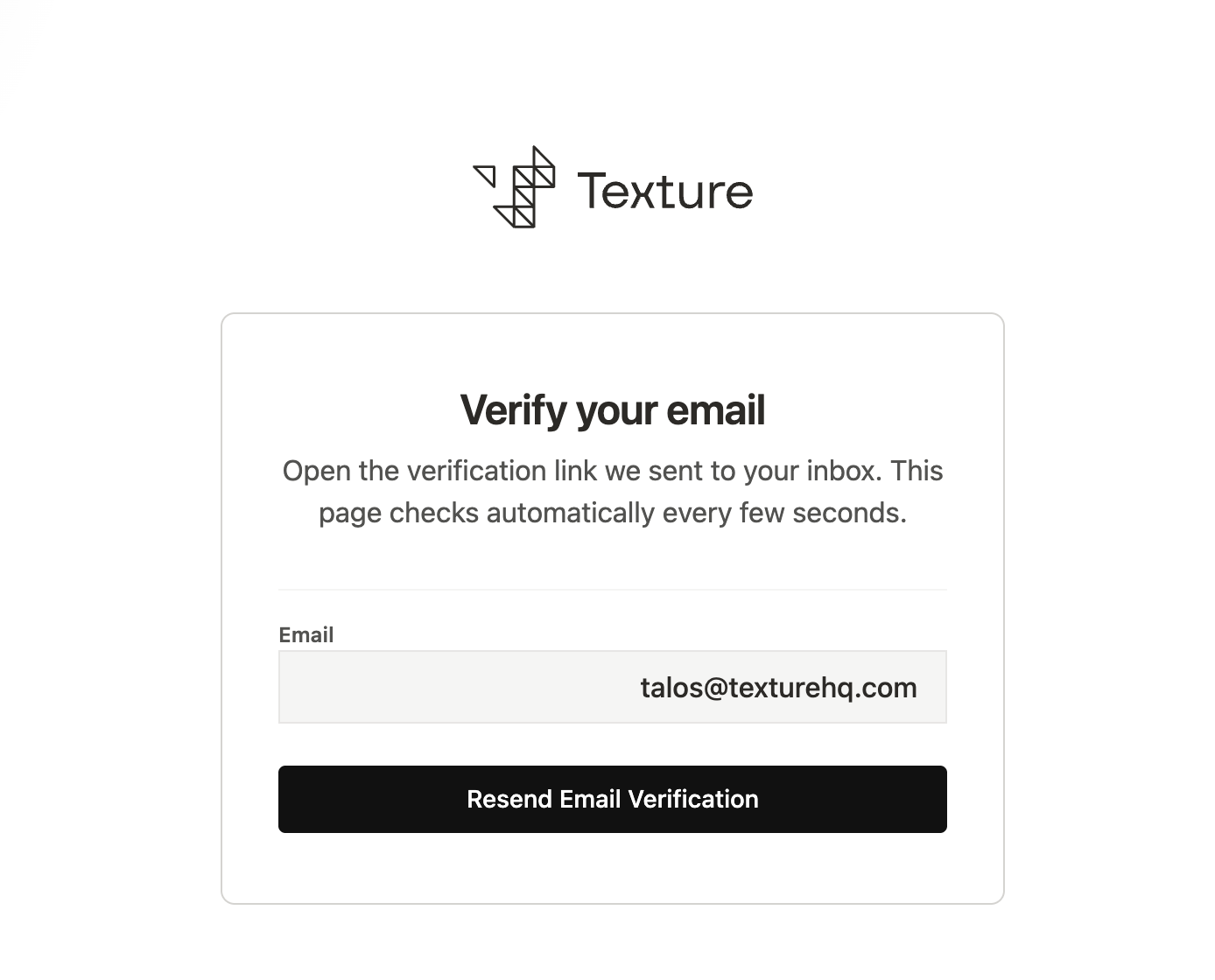
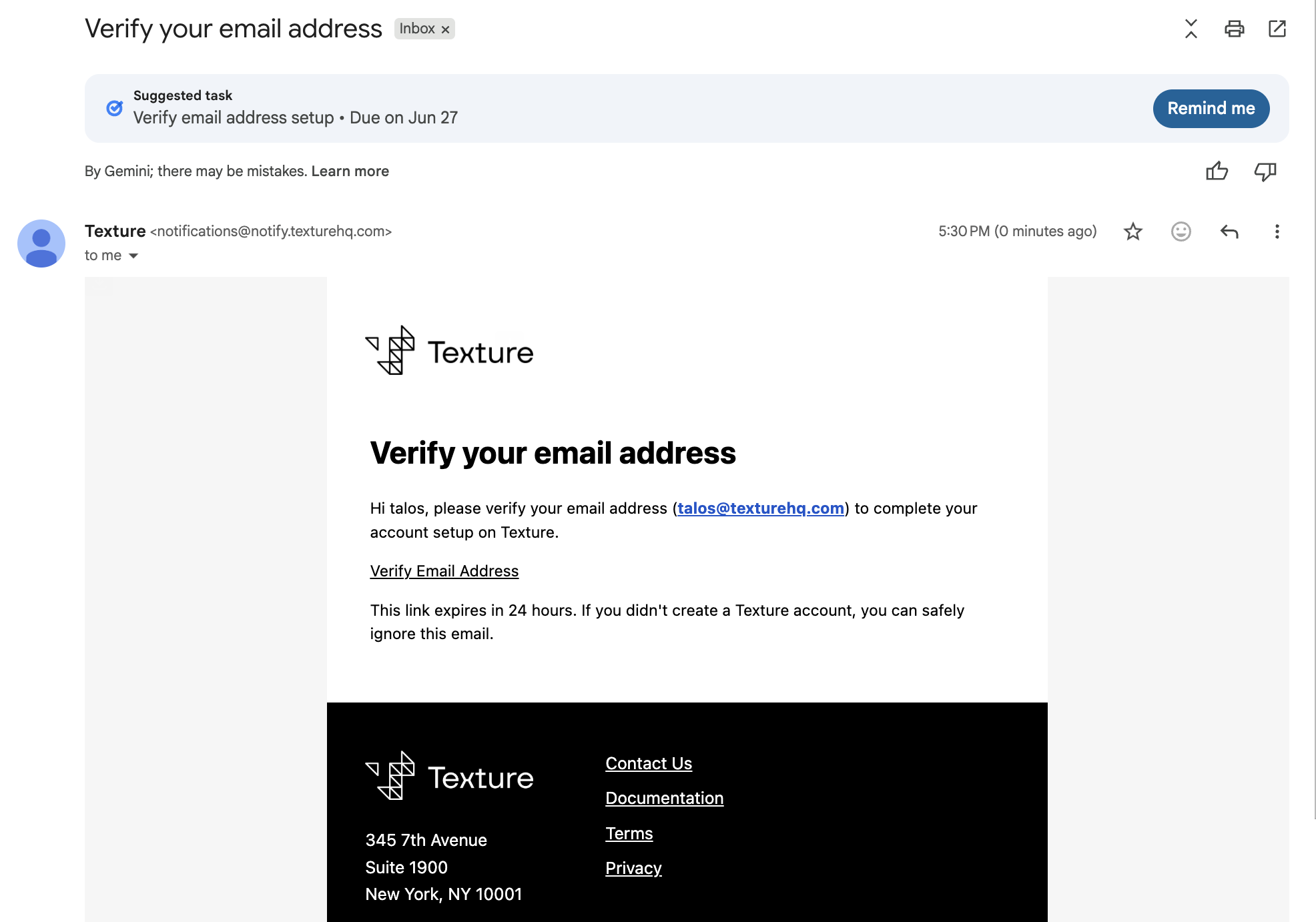
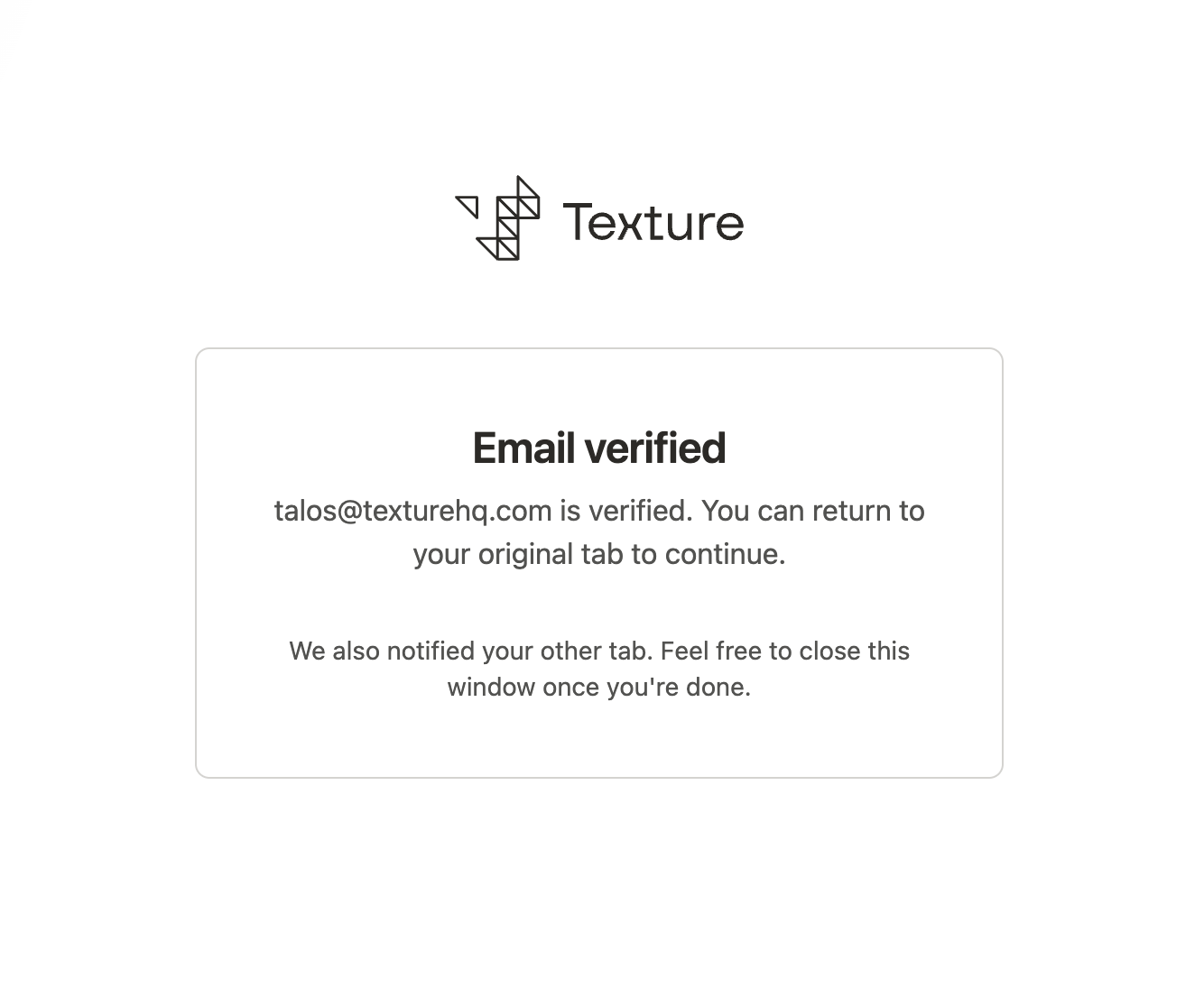
Return to continue. Once you see “Email verified,” go back to your original tab — you're in.
Your organization uses single sign-on (SSO)
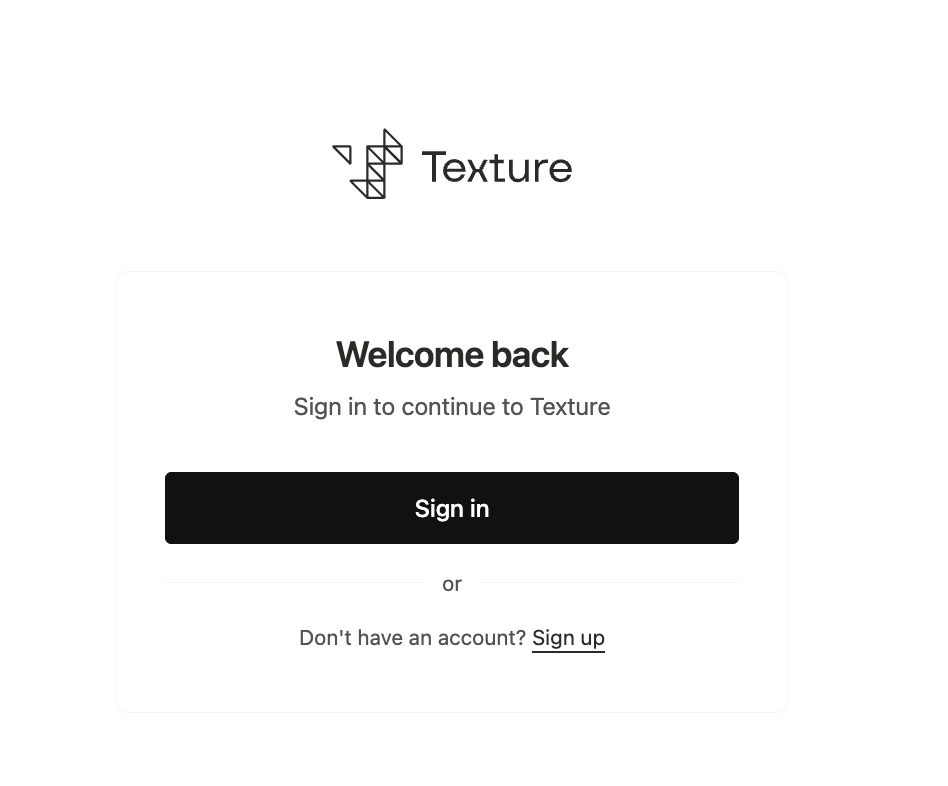
If SSO is enabled, signing in routes you to your organization's identity provider (for example, Okta).
Click Sign In. You'll be redirected to your identity provider.
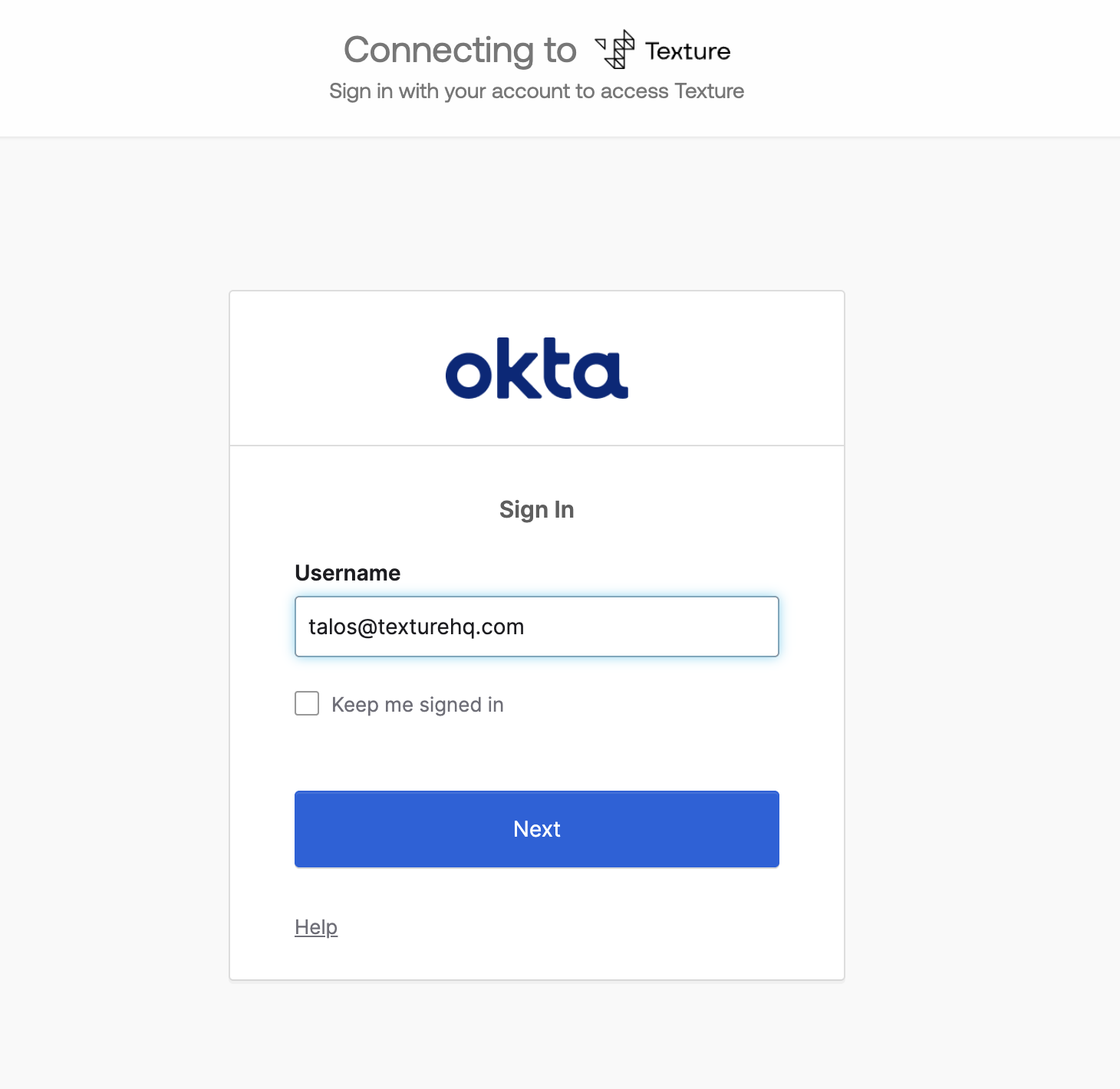
Enter your username. Use your work email, then click Next.
Verify with your password. Enter your password and continue.
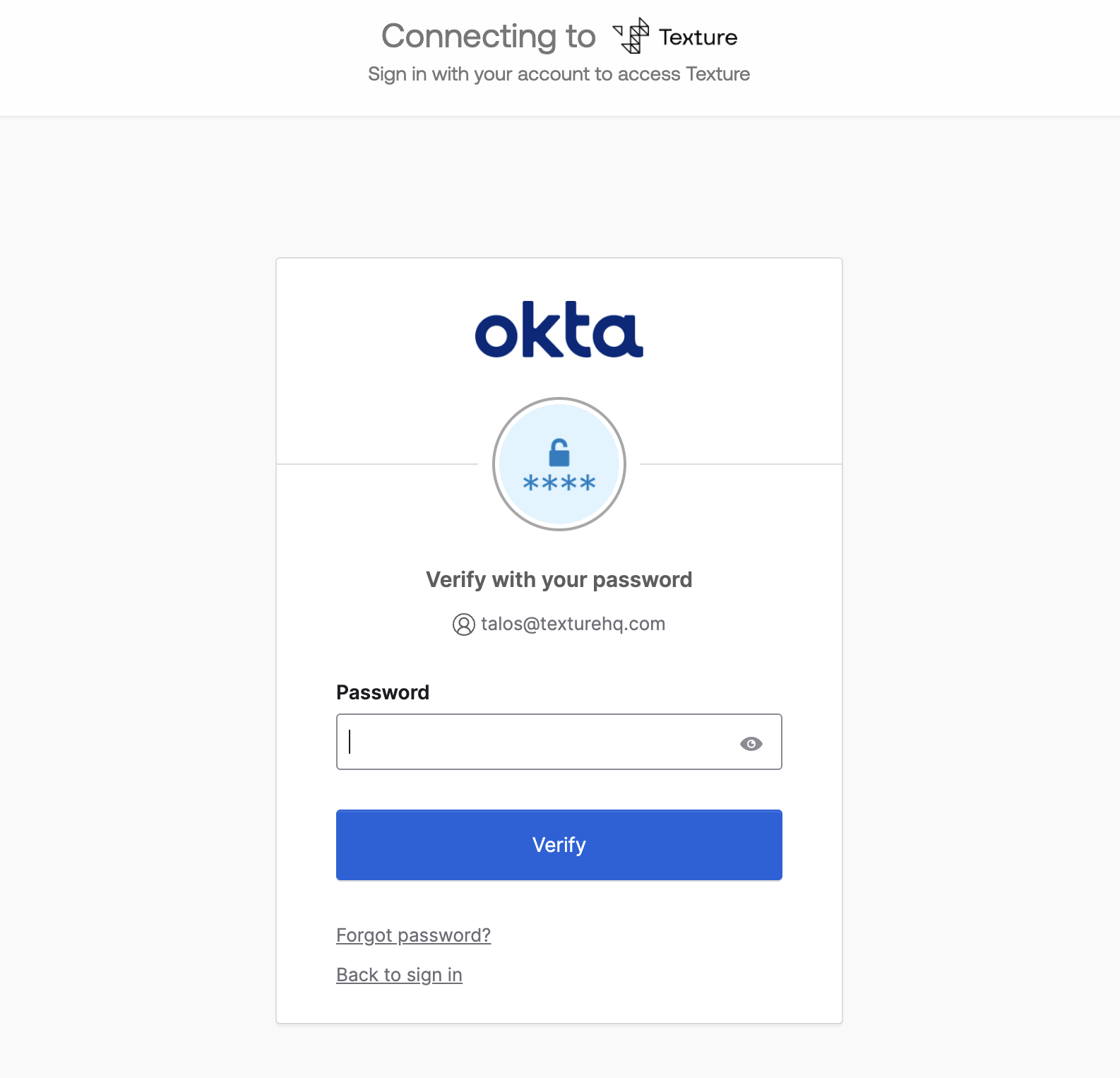
Complete multi-factor authentication. If prompted, enter the code from your authenticator app (for example, Google Authenticator).
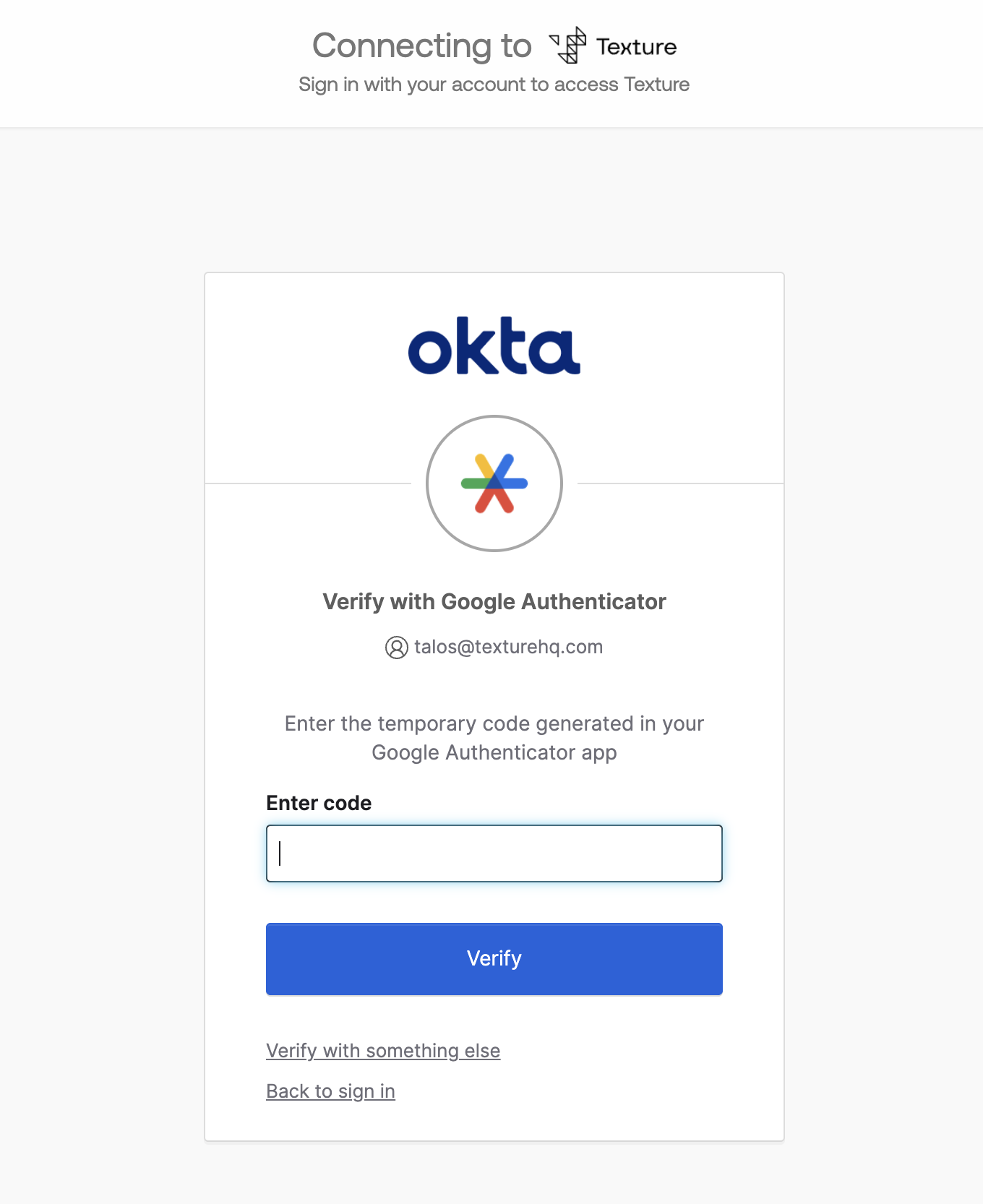
You're in. After verifying, you land in Texture, in your organization's workspace.
Good to know
Accept with the invited email. The invitation is tied to the email it was sent to — sign in or create your account with that address.
Verification links expire in 24 hours. If yours lapses, use Resend on the verify-email page to get a new one.
SSO access. If you're company uses SSO, you can access the Texture platform from the IdP (Okta) directly.
Related articles
Getting Started with Texture — your first steps after joining
Signing Up — accounts, roles, and access
Enable SSO — single sign-on setup for your organization