How to test with Virtual Devices
Last updated: October 9, 2026
Simulate solar, battery, thermostat, and EV telemetry on demand, with no real hardware required.
Virtual Devices is a simulator built into the Texture dashboard that stands in for real hardware. It generates realistic, continuously updating telemetry for any device type under any conditions you choose, such as a battery in backup mode, a heat wave in Phoenix, or a fleet of 8 EVs charging overnight. Use it to test your integration, demo a scenario, or reproduce an edge case without waiting on real-world weather, hardware, or customer behavior.
Virtual Devices lives under Developer → Virtual Devices and has three tabs: Accounts (virtual OEM accounts used to test the Connect flow), Sites (each site runs a scenario that drives its telemetry), and Devices (the individual simulated inverters, batteries, thermostats, and EV chargers).
Devices don't play back pre-recorded data. Each site runs a seeded simulation of solar position, weather, building load, HVAC, and battery dispatch, all driven by the settings you choose. Change a setting and the simulated telemetry changes with it.
Step 1: Create a virtual account
Virtual devices belong to a virtual TextureOS OEM account. During testing, the Connect flow treats this account as your customer's account.
Open Virtual Devices. Go to Developer → Virtual Devices → Accounts.
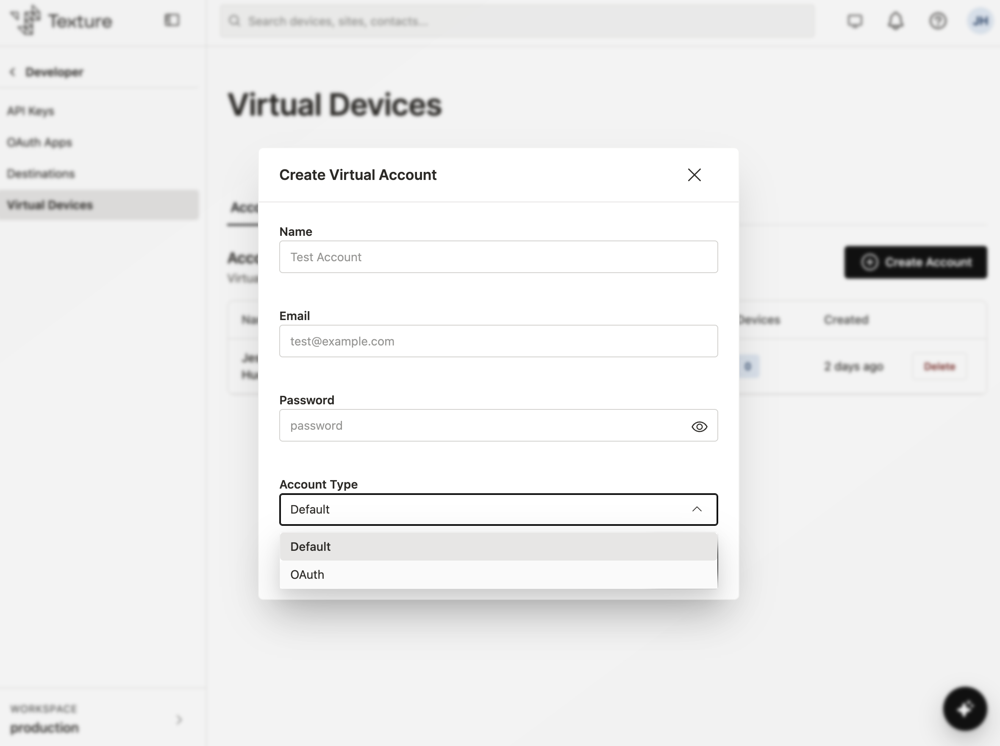
Click Create Account.
Fill in the form. Enter a name, an email, and a password, and choose an Account Type. Default reuses your workspace's default virtual account; OAuth creates a new account with its own Connect-flow credentials, which is what you want for testing the Connect flow.
Click Create. Your new account appears in the list with a confirmation message.
Step 2: Create a virtual site
A site is where you pick a scenario preset, optionally adjust its settings, and create devices, all in one dialog.
Open the Sites tab and click Create Site.
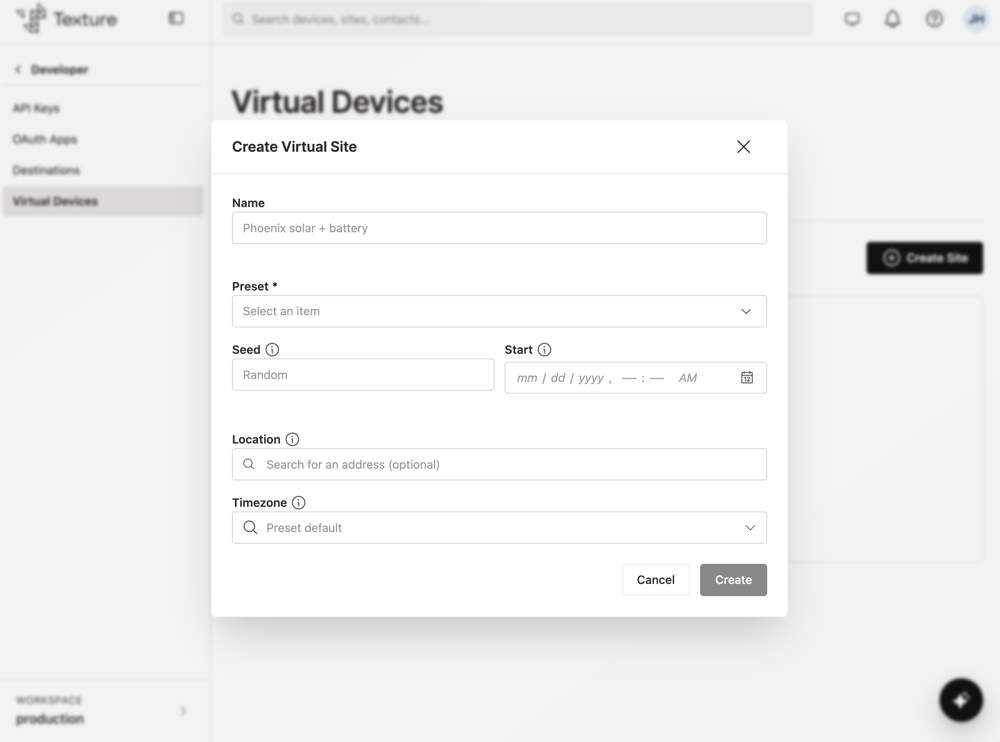
Name the site. Choose something that describes what you're testing.
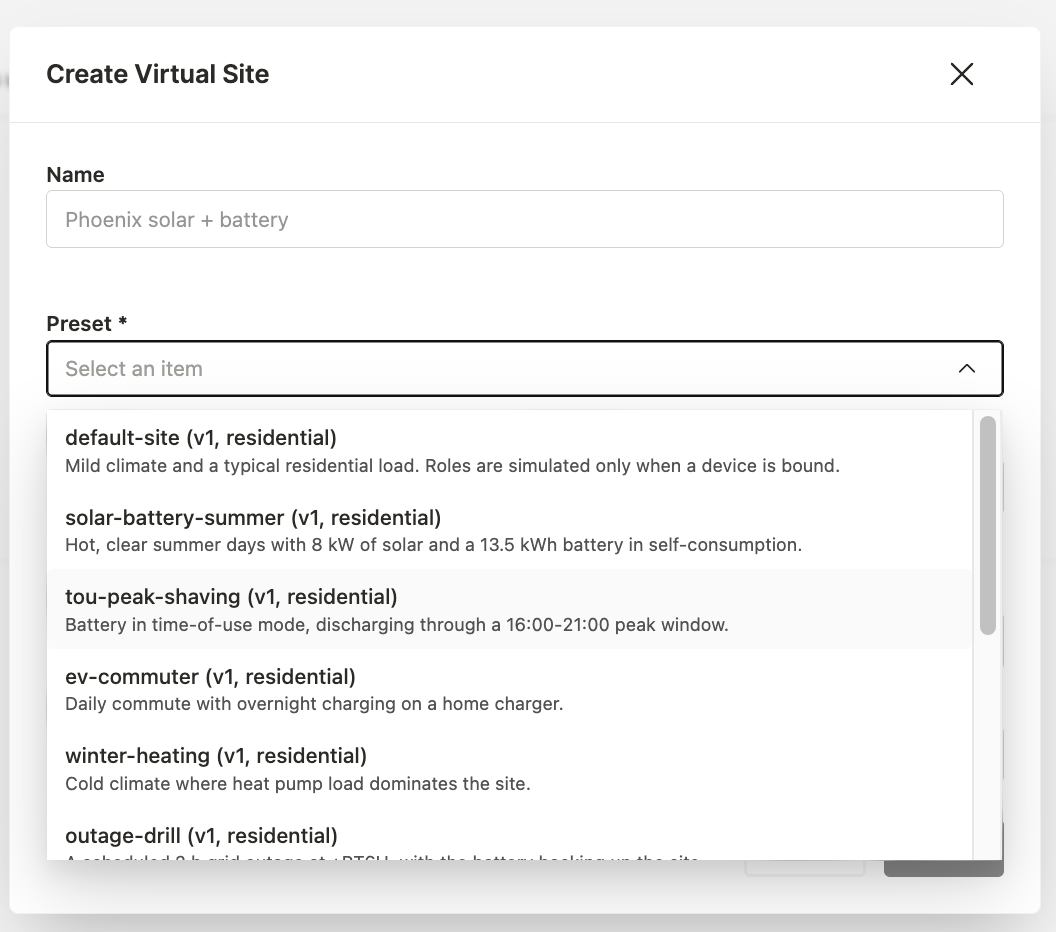
Pick a preset. This is the biggest decision in the form. Each preset is a realistic combination of device roles (solar, battery, HVAC, EV, EV charger) and baseline settings. The description and role badges show what it simulates before you change anything. See the preset list below.
Set reproducibility and location (optional). A fixed Seed replays the exact same noise pattern every time, and Start can be back-dated to simulate a past window instead of "now." Location (search for an address) and Timezone feed the solar-position and weather model directly, so they affect the results. Both default to the preset's location if you leave them blank.
Adjust parameters (optional). See Step 4.
Create devices (optional). At the bottom of the dialog, choose the account the devices should belong to and check the roles that should get a real device record on this site. You can also skip this and attach existing devices later.
Click Create.
Step 3: Add devices to a site
You can create devices while you create the site (the optional Create devices section in Step 2), or add them later from the Devices tab.
Open the Devices tab and click Create Device.
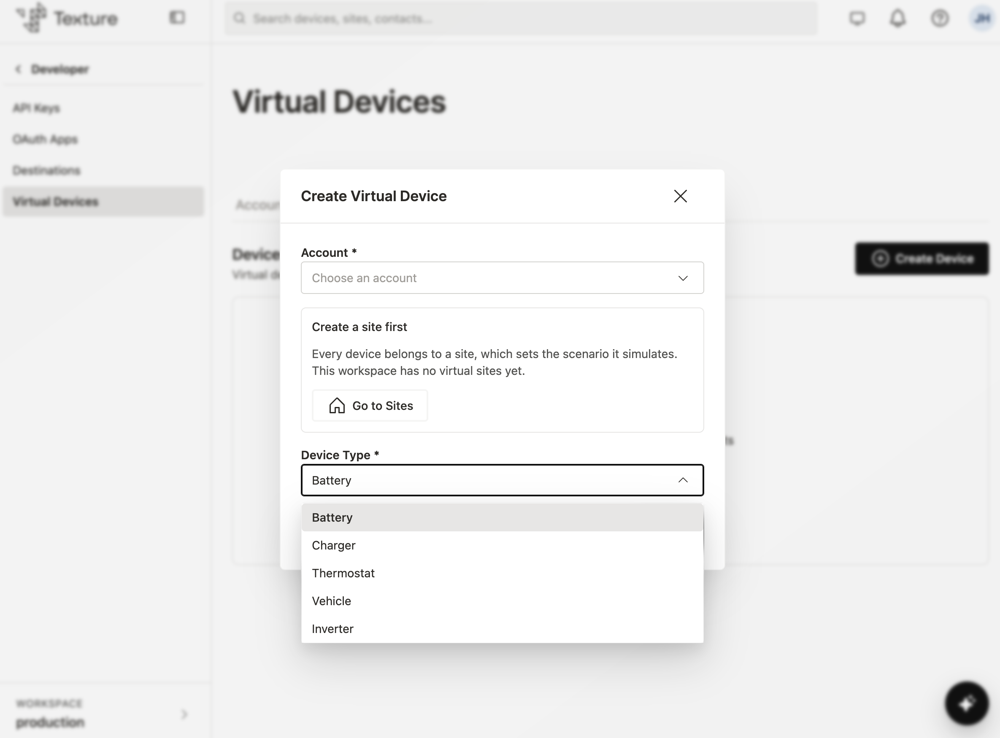
Choose an account. This is the virtual account the device belongs to.
Choose a site. Every device belongs to a site, and the site's scenario sets what the device simulates. If your workspace has no virtual sites yet, the dialog prompts you to create one first, with a Go to Sites button.
Choose a device type. Options are Battery, Charger, Thermostat, Vehicle, and Inverter.
Click Create.
Step 4: Override scenario settings
Below the location fields, a collapsed Parameters panel lets you customize the preset. You don't need to write any code or JSON.
Expand Parameters. Settings are grouped into Environment, Site, Load, and one section for each role the preset includes (Solar, Battery, HVAC, EV, EVSE). Each field shows a plain-language label, unit, and description.
Expand a section to see each field's current value (the preset default unless you've changed it).
Click Override next to the field you want to change.
Set your value. The control fits the field: percentages use a slider, choices such as battery mode use a menu with readable labels ("Self-consumption (use solar first)"), and optional limits such as the grid charge window or forced rate offer three choices: Use preset default, No limit, or Set a value.
Reset if needed. Click Reset on a field to return to the preset default.
Section headers show a count badge (for example, "2 overridden"), and the Parameters panel shows the total, so you can see what you've customized without opening every section.
Step 5: Review the simulation
After you create the site, its detail page shows the resolved scenario (preset, seed, start time, timezone, location, and any overrides) followed by a Simulation preview.
Pick a time window. Choose Next 24h, Last 24h, Last 7 days, First 48h, or a shorter recent window of 15 minutes, 30 minutes, or 1 hour.
Read the charts. Site power shows Grid, Load, Solar, Battery (positive when discharging), and HVAC, and a separate chart shows battery state of charge over time.
Check the devices. The Devices list shows each simulated device and the role it fills (inverter → solar, battery → battery, thermostat → hvac).
Script events. Use the Timeline to add discrete events, such as an outage, a state-of-charge jump, or an API error, on top of the continuous simulation. This tests how your integration reacts to edge cases, not just steady-state telemetry.
NOTE The charts reflect your settings. The Solar curve follows the site's latitude, longitude, and cloud cover. The battery curve follows the battery mode and backup reserve you chose. The Load curve follows the preset's usage pattern. |
Scenario presets
Each preset is a starting point. Pick the one closest to what you want to test, then override only the few settings that matter.
Residential
Preset | What it simulates | Good for testing |
|---|---|---|
default-site | Mild climate and a typical residential load. No role is required, so only the devices you bind run. | A single device type in isolation, such as just a battery or just an HVAC unit. |
solar-battery-summer | Hot, clear summer days in Phoenix with 8 kW of solar and a 13.5 kWh battery in self-consumption. | Peak solar production and a battery charging from excess solar rather than the grid. |
tou-peak-shaving | Battery in time-of-use mode, discharging through a 16:00–21:00 peak window. | Rate-driven dispatch, where behavior changes at a specific time of day. |
ev-commuter | Daily commute with overnight charging on a home charger. | A single-vehicle overnight charging pattern. |
winter-heating | Cold-climate (Minneapolis) home where heat pump load dominates. | Heating-dominated load and a leakier building. |
outage-drill | A scheduled 2-hour grid outage 6 hours into the simulation, with the battery backing up the site. | How your integration detects and reacts to an outage; the event is built in. |
Commercial
Preset | What it simulates | Good for testing |
|---|---|---|
commercial-office | Office load (weekdays, 07:00–19:00) with 50 kW of solar, four rooftop HVAC units, and a 200 kWh battery peak-shaving to a 120 kW demand limit. | Multiple HVAC units on one site and a site-wide demand cap. |
retail-store | Retail load with long open hours, a weekend peak, 30 kW of solar, and two rooftop units. | A load shape with no battery and a weekend-heavier pattern. |
fleet-depot | Eight vans charging overnight under a shared site cap, with a 250 kWh battery covering the return spike. | Many EVs and chargers sharing one cap, and what happens when demand exceeds it. |
workplace-charging | Office load with six chargers serving anonymous cars that arrive in the morning and leave at night. | Chargers without a specific vehicle record. |
Using the API
Everything in the dashboard is also available through the Texture API, so you can set up virtual accounts, sites, and devices from your own test scripts. Requests go to https://api.texturehq.com/v1 and are authenticated with your API key in a Texture-Api-Key header. See the API reference for full request and response details.
A typical flow
Find a preset. Call GET /virtual/scenarios and pick a preset ID, such as outage-drill.
Create a site. Call POST /virtual/sites with the preset ID and any overrides. You can create devices in the same call.
Connect devices. Devices created through the API are registered on the platform with POST /virtual/devices/{id}/connect, after which they appear as connected devices (GET /v1/devices/{id}). Devices on an OAuth account go through the Connect flow instead.
Script edge cases. Add events with POST /virtual/sites/{id}/events. Event types are offline, comms_dropout, api_error, outage, set_soc, unplug, plug_in, charge_stall, trip, set_param, and command_failure. Times can be an ISO timestamp or an offset from the site's start, such as +PT6H.
Check the results. Read the simulated series with GET /virtual/sites/{id}/timeseries, or a single device's state with GET /virtual/devices/{id}/state.
Accounts
Method | Endpoint | What it does |
|---|---|---|
POST | Create a virtual account (type DEFAULT or OAUTH). | |
GET | List virtual accounts. Filter with type=OAUTH to find accounts with Connect-flow credentials. | |
GET | Get one account, including its Connect-flow credentials. |
Scenarios
Method | Endpoint | What it does |
|---|---|---|
GET | List every scenario preset, with its roles and its settings as JSON Schema. |
Sites
Method | Endpoint | What it does |
|---|---|---|
POST | Create a site from a preset. Accepts seed, startAt, timezone, latitude, longitude, settings overrides, and up to 50 devices in the same call. | |
GET | List your virtual sites with their scenarios and device bindings. | |
GET | Get one site. | |
PUT | Replace a site's preset and settings. Seed, start time, and location are kept unless you send new ones. | |
DELETE | Delete a site. Fails while live devices remain at it, or if it's an account's default site. | |
GET | Get the simulated series for every role at a site over a time range (up to 20,160 points). | |
POST | Queue an immediate platform poll so new scenario state shows up without waiting for the next scheduled poll. |
Timeline events
Method | Endpoint | What it does |
|---|---|---|
POST | Add one scripted event or an array of up to 100. | |
GET | List the site's timeline: scripted events and recorded commands, oldest first. | |
DELETE | Remove a scripted event. Recorded commands can't be removed. |
Devices
Method | Endpoint | What it does |
|---|---|---|
POST | Create a virtual device (battery, charger, thermostat, vehicle, or inverter), optionally at a site and under an existing account. | |
GET | List your virtual devices. | |
PATCH | Move a device to another site and/or set its role. | |
POST | Register a device on the platform so it appears as a connected device, optionally linking a site and customer. | |
GET | Get a device's simulated state at a point in time (defaults to now). | |
DELETE | Delete a virtual device. It stops producing data immediately; its platform device record stays until you delete it with DELETE /v1/devices/{id}. |
Good to know
Same seed, same results. A fixed seed with the same settings always produces the same curves, which makes tests repeatable.
Location matters. Location and timezone drive the solar and weather models, so change them to match the region you want to simulate.
Start from a preset. Override a handful of settings rather than building a scenario from scratch.
Devices are optional at creation. You can create a site first and add devices to it later from the Devices tab (Step 3).