Creating a Program Event
Last updated: July 6, 2026
Schedule, configure, and manage one-time control events for a battery program.
This guide walks through scheduling and configuring a program event.
What is a program event?
A program event is a one-time control event scheduled for a specific date and time. It sends one or more commands — called actions — to the devices enrolled in a program, telling them to charge, hold, or discharge during set windows.
For example, an event might charge a fleet of home batteries during the day, then discharge them to the grid during the evening peak.
Navigate to Program Events
In Texture, go to Programs → Program Events. From here you can:
View events that are In Progress, Scheduled, or Completed
Show event Drafts and filter events by date
Click Schedule Event to create a new event
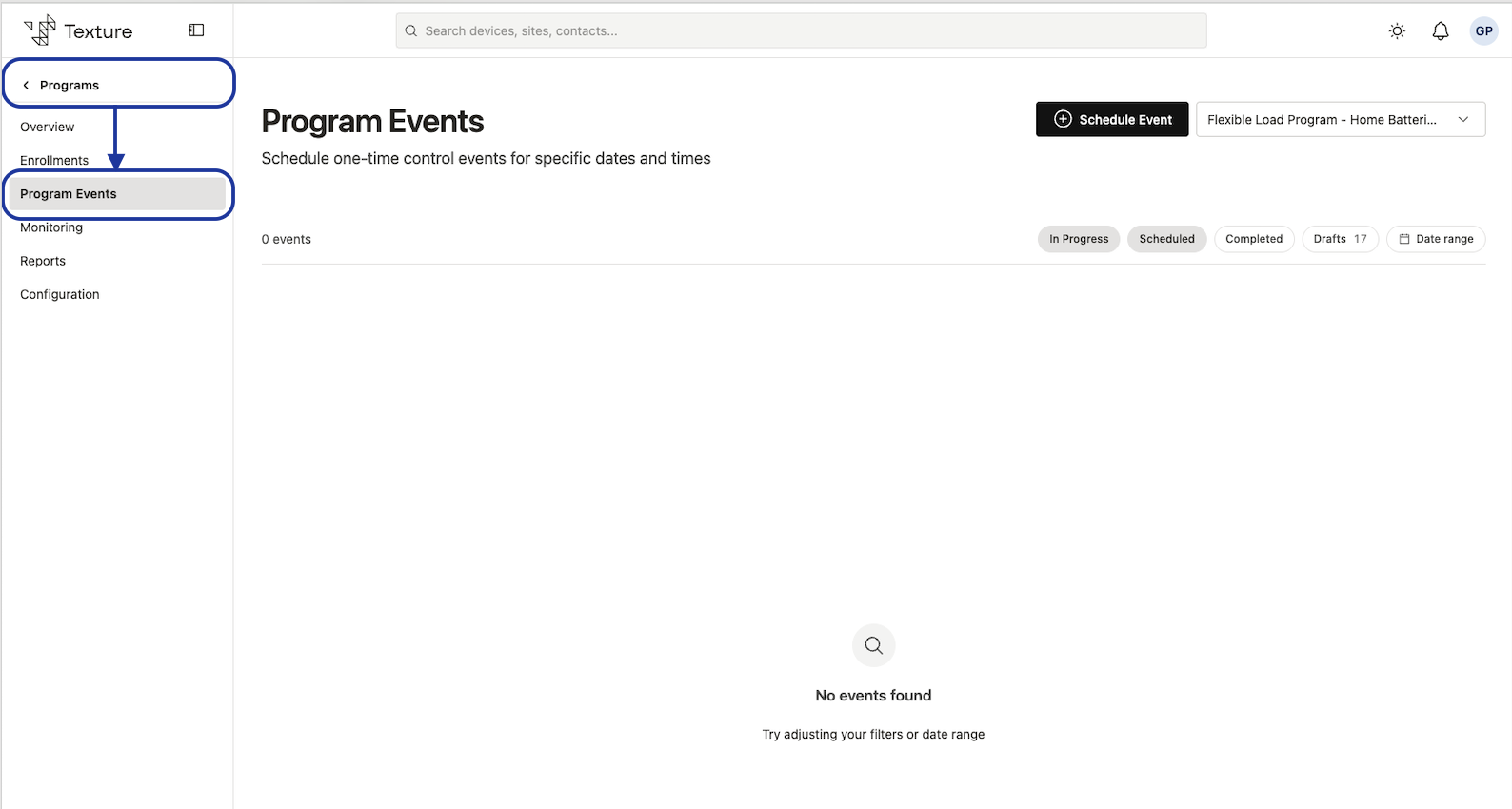
Schedule a new event
After clicking Schedule Event, set your Targets and Actions.
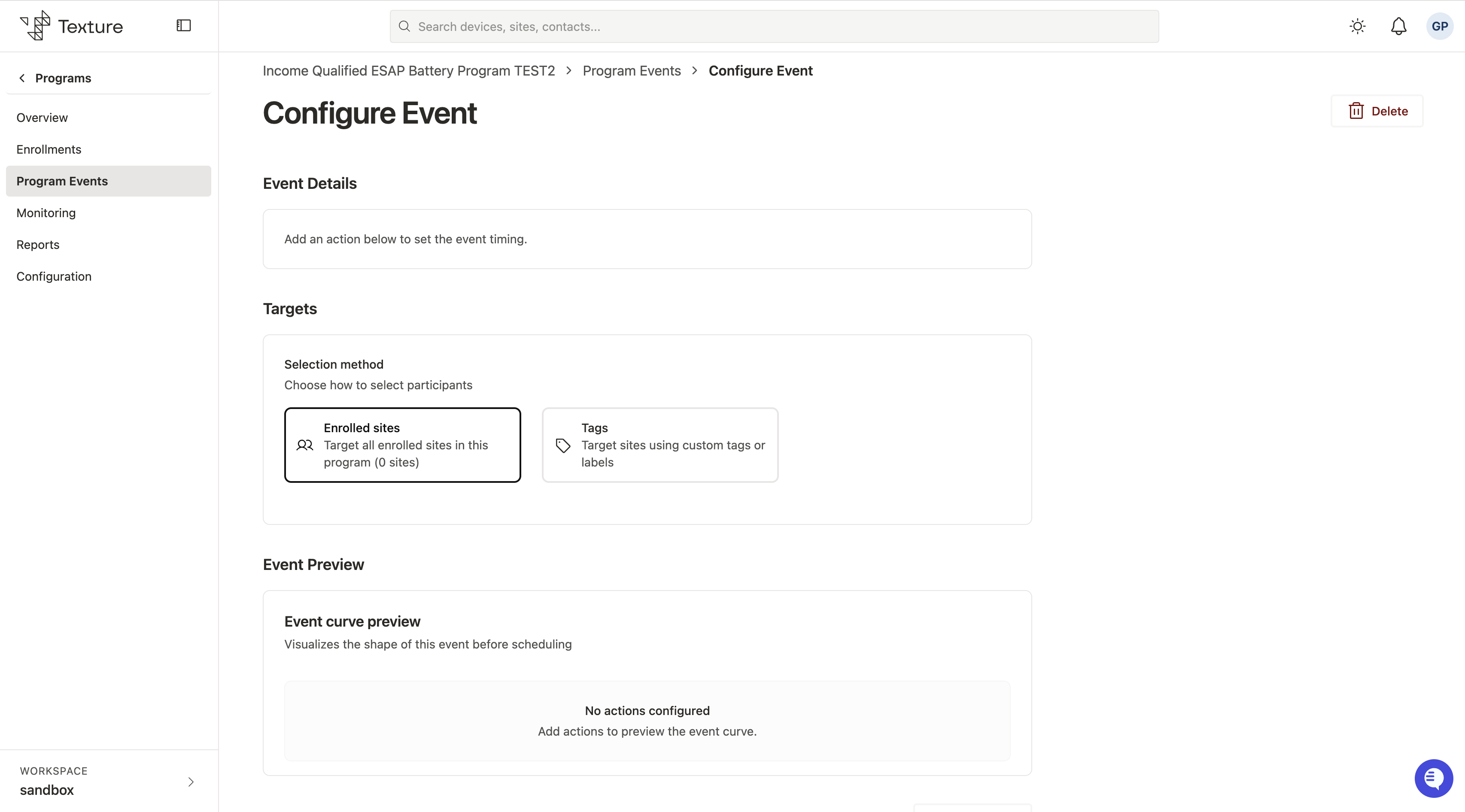
Targets
Under Targets, choose how participants are selected:
All enrolled devices — target every device enrolled in the program.
Tagged devices — target only devices carrying a specific tag. Useful for running an event against a subset of the fleet.
Actions
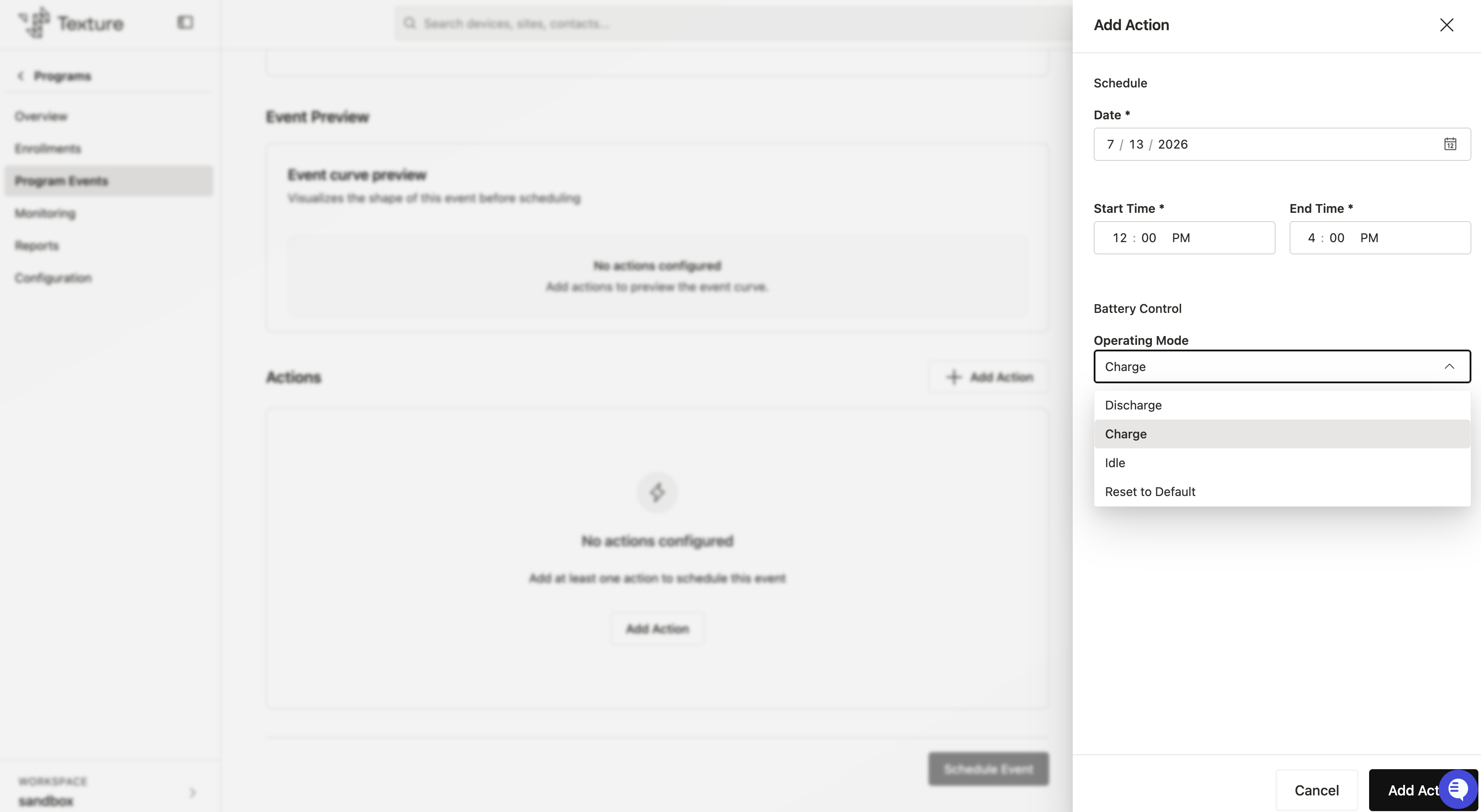
Actions tell your devices what to do and when. Add one or more actions, and set the date and time each one runs.
For each action, set the Operating Mode — what the battery should do during that window:
Operating Mode | What the battery does |
|---|---|
Charge | Draws energy in to charge the battery (typically pre-charging ahead of a discharge window). |
Discharge | Sends energy out to the grid during the window. |
Idle | Holds — neither charging nor discharging. |
Reset to Default | Returns the battery to its normal, pre-event operating behavior. |
When the mode is Discharge, you can set a Minimum Reserve — the battery state-of-charge floor the discharge will not go below (e.g., 20%), preserving the customer's backup capacity.
Visualize your event
Use the Event curve preview to see the shape of your event before you schedule it.
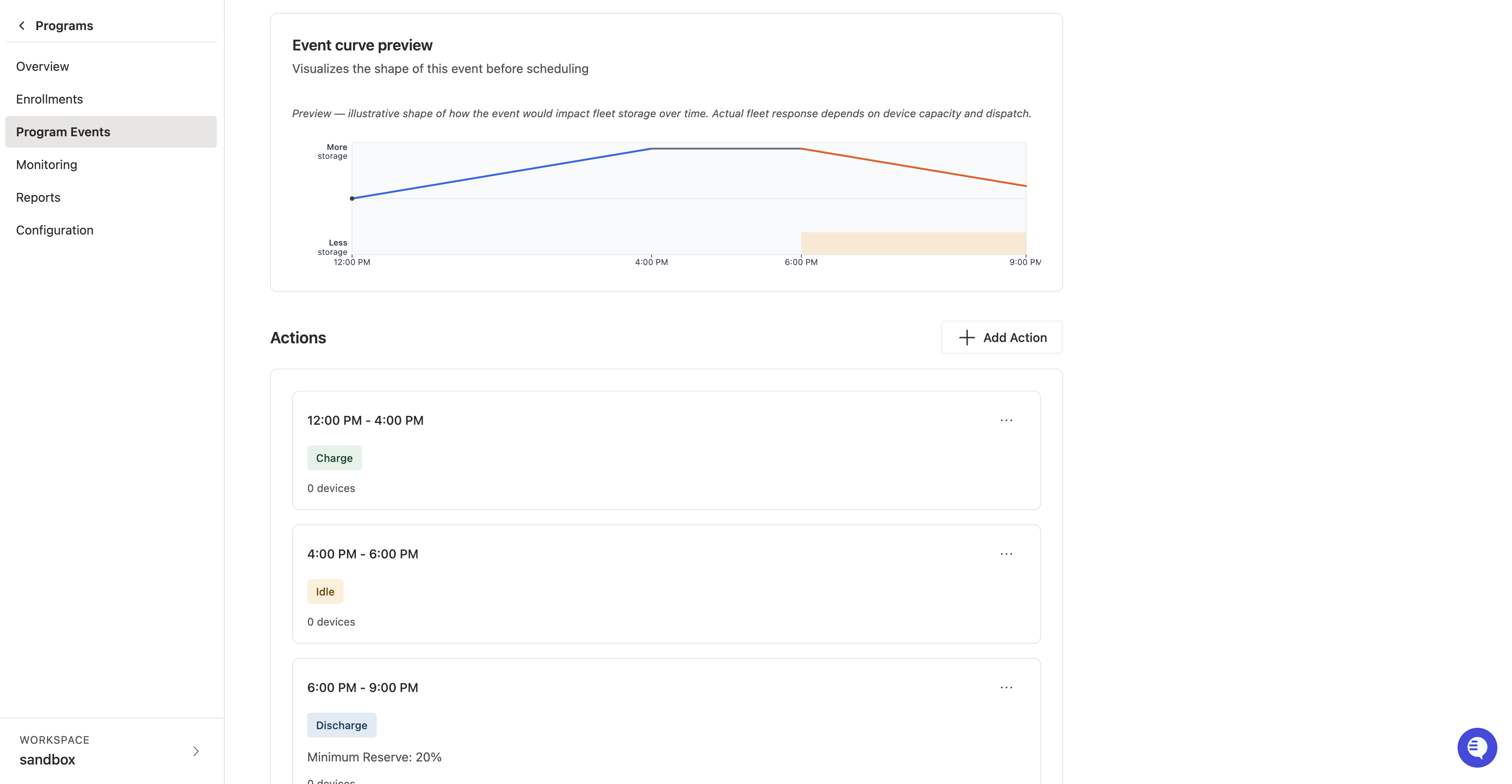
Schedule the event
Once the event has at least one action, click Schedule Event to finish. (The button stays disabled until at least one action exists.) To discard the event instead, click Delete.