Managing your program in Texture
Last updated: October 15, 2026
Once your program is live, your team runs it day to day in Texture: reviewing who's applying, approving enrollments, seeing which devices are connected, scheduling events, and reporting on results. This article walks through the program views your team will use.
Program configuration
Each program in Texture holds the settings that define how it runs. Your Texture Solutions team sets these up with you before launch, and you can review them at any time:
Program details: the program's name, the device types it covers, and its terms and conditions.
Device manufacturers: which brands customers can enroll, for example specific thermostat or battery manufacturers.
Eligibility rules: how applications are checked, such as by account number, service address, ZIP code, or service territory.
Approval: whether eligible applications are approved automatically, or reviewed by your team first.
Event rules: limits that match your program design, such as how many events a month, how long they run, and notice periods.
If something about your program changes, such as new terms or an added manufacturer, talk to your Texture Solutions team so the configuration stays in sync with what customers have agreed to.
[Screenshot: program configuration]
Enrollment form
Each program has its own enrollment form with your branding. It asks the questions your program needs, such as name, email, service address, and account number, and collects acceptance of your terms and conditions. When a customer submits the form, they're taken straight into connecting their device. See Program enrollment and device connection flow for what customers see.
Enrollment funnel
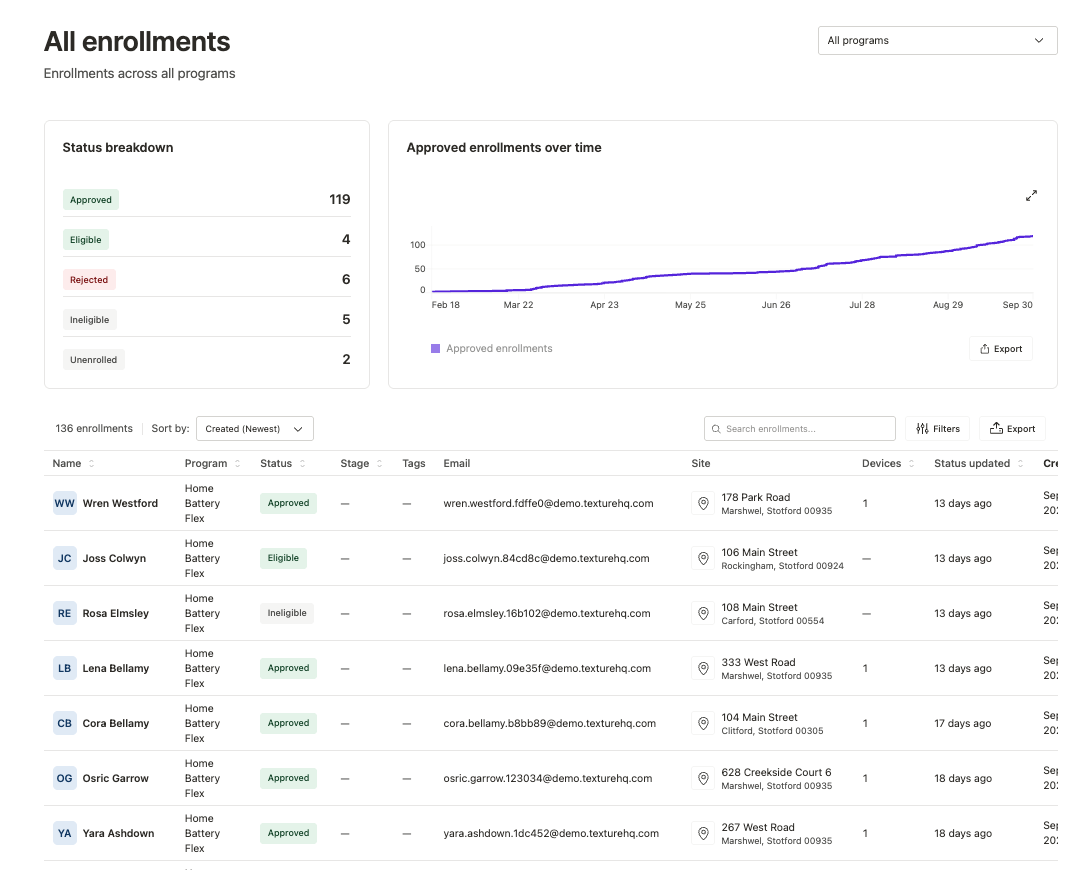
The enrollment funnel shows where every applicant is in the process, so you know how much capacity is coming and what needs attention:
Applied: the customer submitted the enrollment form.
Eligibility checked: the application was checked against your eligibility rules, and either passed or needs a closer look.
Device connected: the customer connected their device through their manufacturer account.
Approved: the enrollment is approved and the device is available for events.
From the funnel you can open individual enrollments to see their details, and review any that are waiting on your team, such as applications that didn't pass eligibility automatically.
Enrolled devices
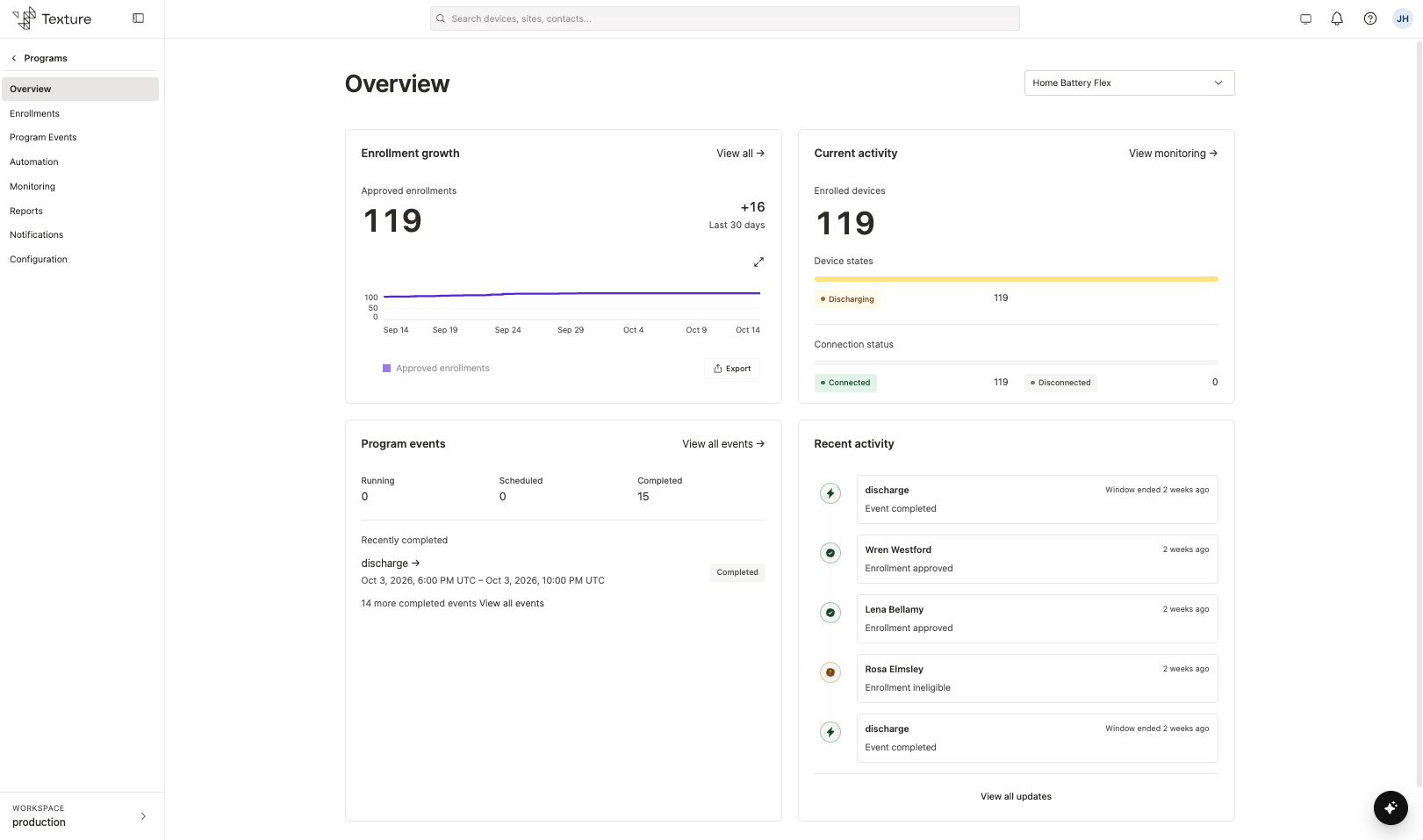
Approved devices appear in your program with their status and recent telemetry. Open any device to see its details and history, or view enrolled devices on the map in Explore alongside your grid data.
Events
Schedule events for your program's enrolled devices: choose the timing and duration, which devices to include, and what each device type should do. See Creating a program event.
If you're a member of a G&T or muni that also schedules events for your program, you'll see those events alongside your own. See How aggregated program control works for G&Ts and munis.
Reporting
After each event, Texture reports how the program performed, so you can see participation and results. Reporting also covers enrollment growth over time and program totals. Your Texture Solutions team will set up reporting to match your program's needs during implementation.
[Screenshot: event results]
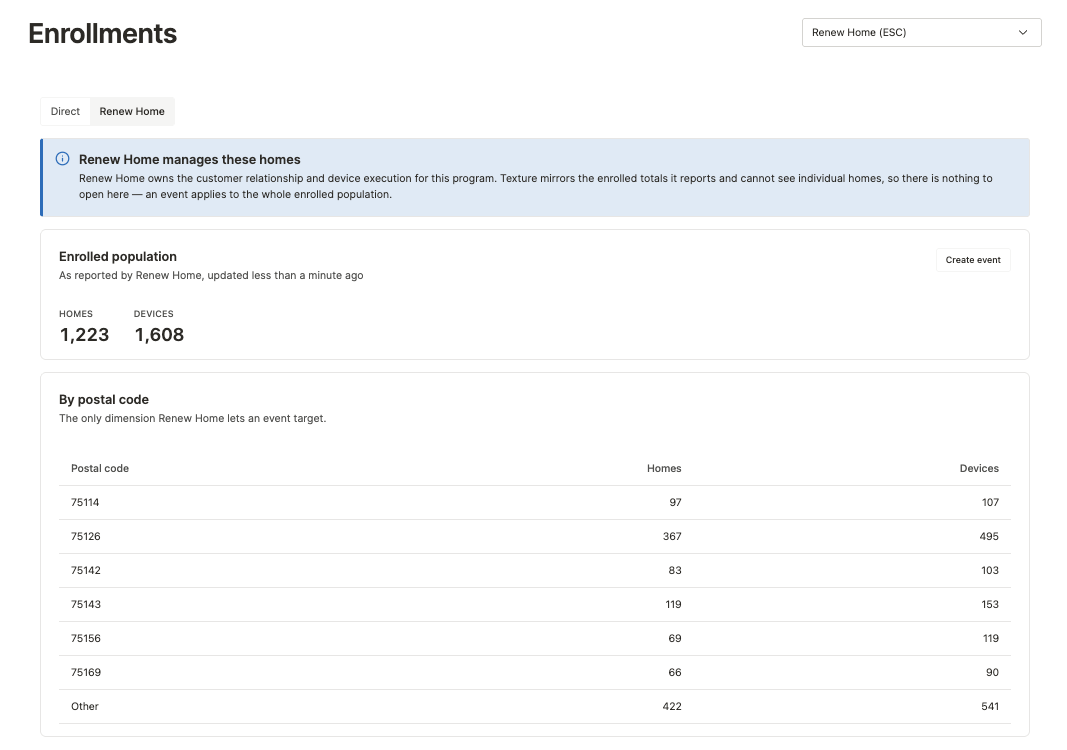
Renew Home thermostat programs look different
For thermostat capacity through Renew Home's Energy Shift Capacity program, customers are already enrolled with Renew Home, so there's no enrollment form or funnel to work through. Instead, you'll see available capacity grouped by ZIP code rather than by individual device. See Getting started with Renew Home via NRTC DERMS.