Finding and adjusting Explore map layers
Last updated: June 26, 2026
Choose what's drawn on the map — lines, poles, transformers, substations, devices — so you see exactly what you need.
In Explore, map layers control what's drawn on the map. They're separate from filters: filters decide which data you're working with, while layers decide what appears on the map. Turn layers on and off to focus the view — and they stay how you set them.
Adjust your map layers
Open Explore. Select Explore from the left navigation, or click a cluster on the Home page.
Open the layer controls. You'll find them in the lower-left of the map.
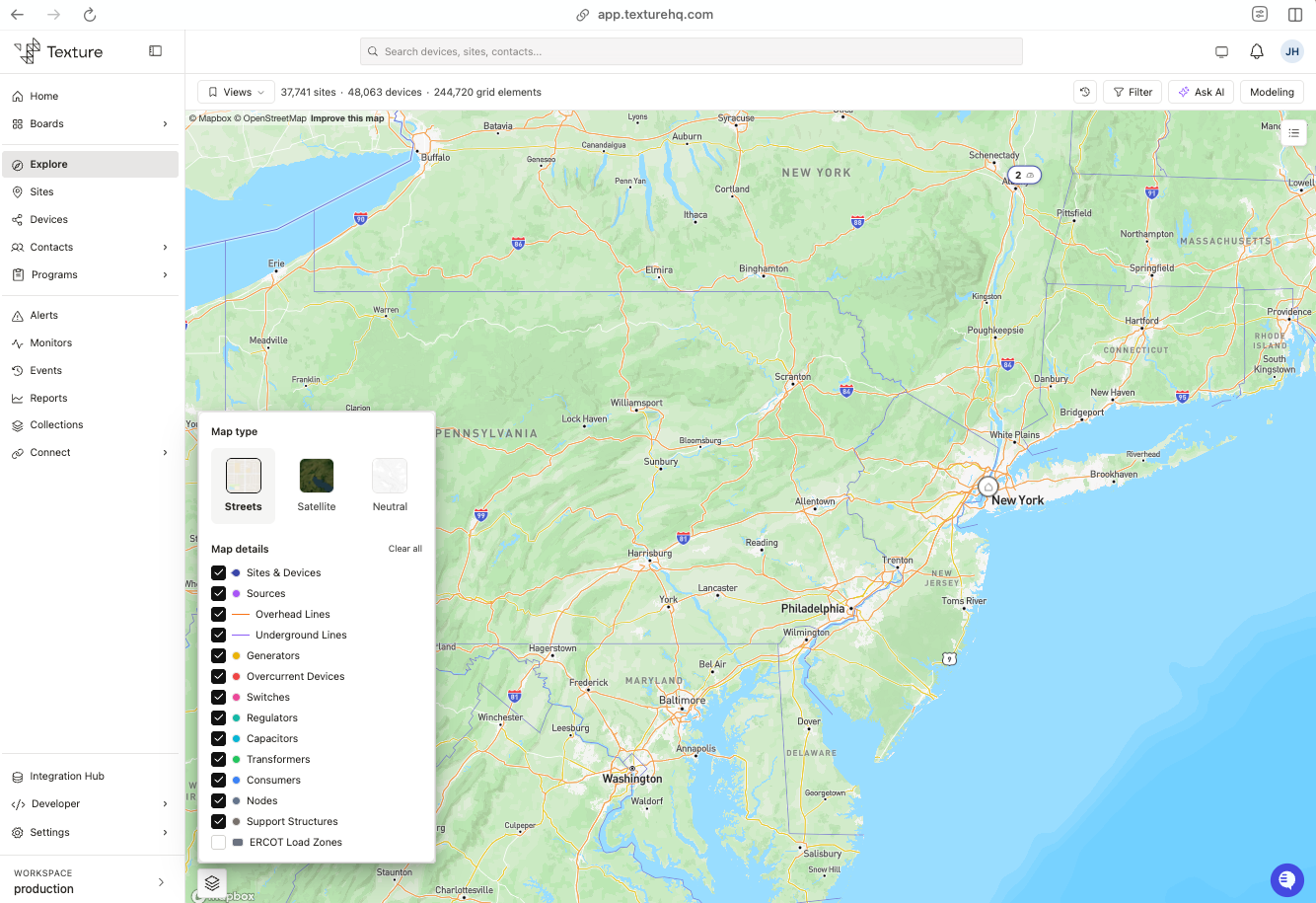
Toggle layers on or off. Show only what you care about — hide poles and lines to declutter, or turn on substations and transformers to focus on the grid.
Zoom in to reveal more. To keep the map readable, finer elements appear as you zoom. At a wide view you'll see the large three-phase trunk lines; transformers and smaller elements show up as you zoom closer.
Switch the basemap. Choose the background style — for example, a streets map or a neutral map — that works best for you.
Your choices stick. Your layer and basemap selections are remembered for you the next time you open Explore.
Good to know
Layers vs. filters. Layers control what's drawn on the map; filters control which data you're working with — they're independent, so you can filter to a set and still toggle layers.
Zoom reveals detail. Some elements appear only once you zoom in. That's intentional — it keeps the map readable at a wide view.
Line colors. Purple = underground, orange = overhead.
Saved to you. Layer and basemap choices are per user; teammates set their own.