Creating saved views in Explore
Last updated: June 26, 2026
Save a filtered view once and jump back to it anytime — no need to rebuild your filters.
A saved view captures the filters you've set in Explore under a name you choose. Instead of rebuilding the same filters every time, open your saved view and you're right back to the slice of the grid you care about — your region's substations, a transformer watch-list, a single manufacturer, and so on.
Create and manage a saved view
Set up the view. In Explore, apply the filters you want. (New to filtering? See How to adjust filters in Explore.)
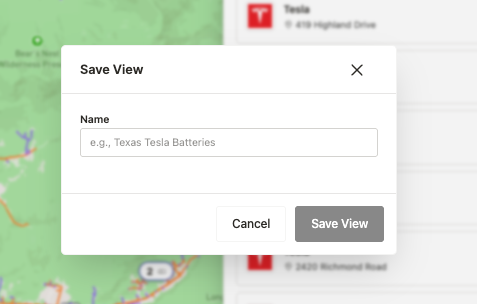
Save it. Click Save view, give it a clear name — for example, “My region's substations” — and save.
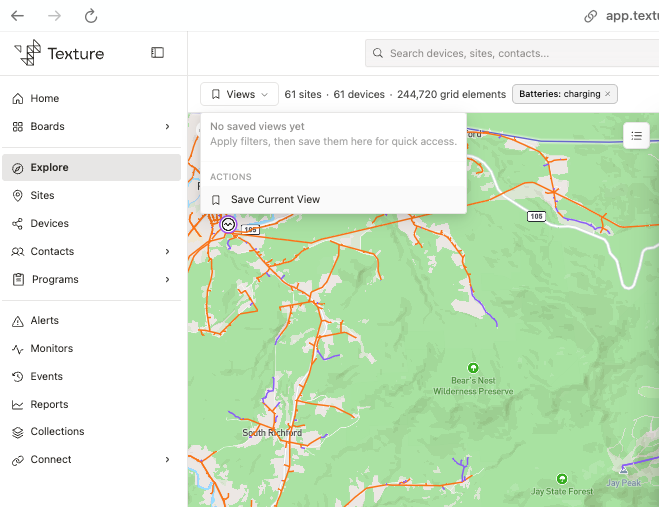
Reopen it later. Pick it from your views list to jump straight back — your filters are reapplied automatically.
Update or duplicate. Adjust the filters and save your changes, or duplicate a view to spin off a variation without touching the original.
Rename or delete. Manage your views — rename one for clarity, or delete views you no longer need.
Close the view. Close it to step back out to the full, unfiltered workspace.
Good to know
Views are personal — for now. Your saved views are tied to your account, so they're yours alone. (Shared, organization-wide views are on the way.)
A view remembers your filters. Reopening it reapplies them instantly — no rebuilding.
Start from an existing view. Duplicate one as a shortcut instead of starting from scratch.
Pair with export. Open a view, return to the overview (the table and CSV export live there, not in the filter drawer), then open the table to export exactly that set.
Views worth saving
A few ideas to get you started:
Your region's substations, feeders, and transformers
Transformers above a chosen rated kVA (a loading watch-list)
Batteries below 50% state of charge
A single manufacturer — for example, ChargePoint only