Creating monitors
Last updated: June 26, 2026
Set up a monitor to watch your devices for a condition — and raise an alert when it's met.
A monitor watches your data for a condition and fires when it's met — for example, a battery below a state-of-charge threshold, or a device that's stopped reporting. When a monitor fires it raises an alert; who gets notified (email, SMS, or in-app) is handled separately. Here's how to create one.
Create a monitor
Open Monitors. Go to the Monitors area in the dashboard and choose to create a new monitor.
Start from a template or from scratch. Templates cover the most common cases (see the list below), or build your own.
Choose the type. Pick what the monitor watches for — a threshold, a change, data freshness (staleness), or a specific status.
Set the scope. Choose what to watch: the entire workspace, a device type (for example batteries or meters), a site, a collection, or a program.
Pick the metric and condition. For a device type, choose the metric — for batteries that includes state of charge, voltage, current, power, temperature, and grid power — and set the threshold or value to watch for.
Set how often it checks. Choose the cadence — for example every 5 or 15 minutes, or hourly. Each time it runs, it checks whether anything matches.
Save. Your monitor is now active. Consider running it in shadow mode first to see how it behaves on live data without firing alerts.
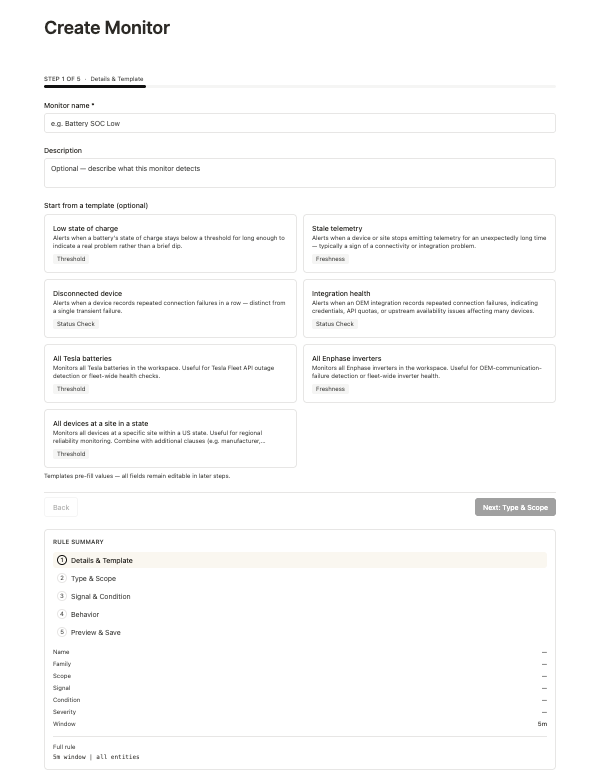
Templates to start from
Common monitor templates:
Low state of charge — a battery below a set level
Stale telemetry — no data received from something for a period
Integration not working — an integration has stopped functioning
Device disconnected — a device has dropped off
By manufacturer or location — scope to a specific OEM or to devices in a location
Good to know
Monitors are workspace-wide. Everyone in the workspace sees them — great for standardizing what the team watches.
Monitors raise alerts; notifications are separate. A monitor firing creates an alert; who gets emailed, texted, or notified in-app is configured separately (and is often pre-configured for you).
Try shadow mode first. Run a monitor in shadow to validate it on live data without firing any alerts.
Grid elements are coming. Directly monitoring grid elements (like transformers) isn't available yet — transformer monitoring builds on aggregated downstream meter load.