Finding meter voltage charts
Last updated: June 26, 2026
View a meter's voltage over time — with ANSI service limits marked — from Explore or from Devices.
Texture plots each meter's voltage over time, with the ANSI service-limit lines marked so you can spot under- or over-voltage at a glance. There are two ways to reach a meter's voltage chart — through Explore or through Devices — plus a way to see metrics rolled up at the site level.
Option 1 — From Explore
Open Explore. Select Explore from the left navigation.
Filter to meters. Add a filter for device type Meters (and optionally narrow by manufacturer or service status). See How to adjust filters in Explore.
Select a meter. Click a meter on the map or in the list to open its details.
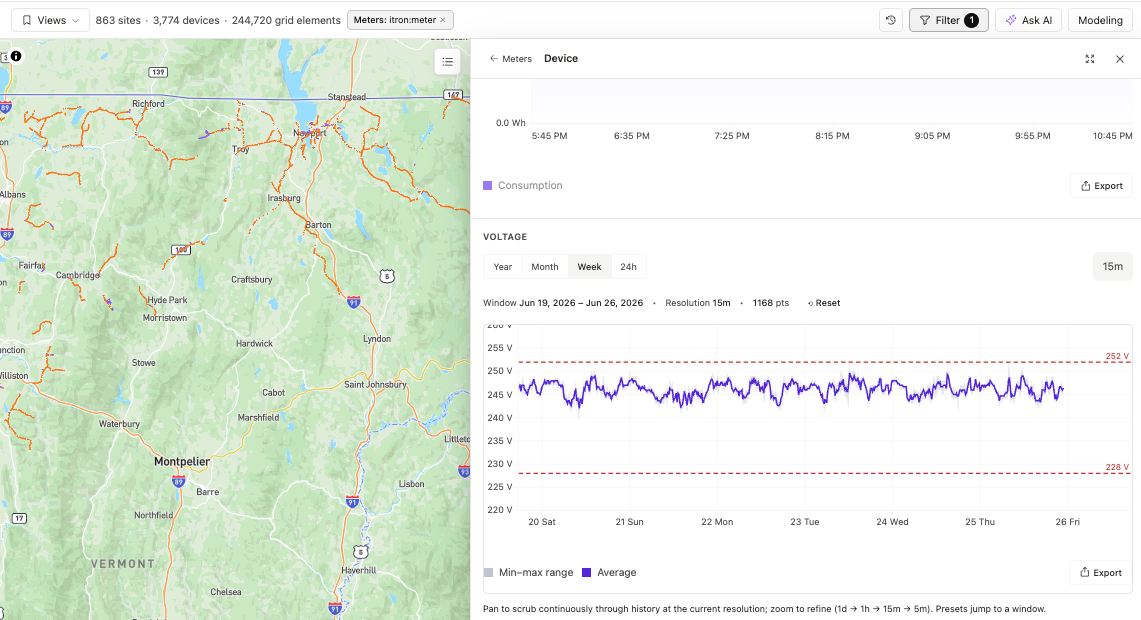
Open the voltage chart. In the meter's detail, the voltage chart shows voltage over time with the ANSI limit lines. Zoom and scrub to inspect a specific day or zoom out to a longer span.
Option 2 — From Devices
Go to Devices. Open Devices from the left navigation.
Find the meter. Search by meter number (a common way operators look meters up), or filter by device type.
Open the meter. Click into the meter's detail page.
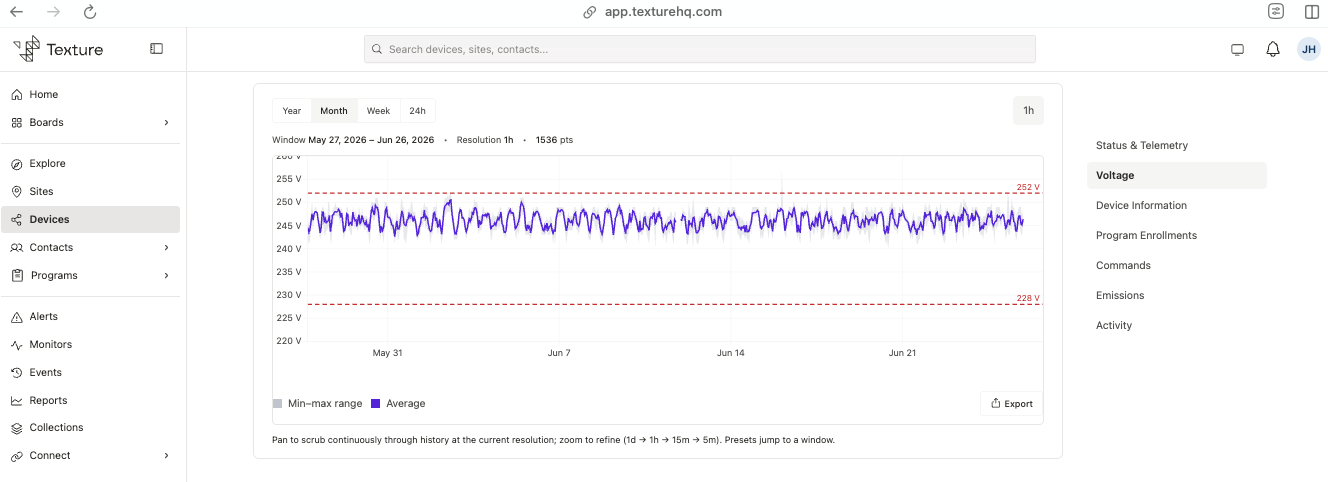
View the voltage chart. You'll see the same voltage chart and ANSI limit lines as in Explore.
Good to know
The red lines are ANSI service limits. For a 240 V service these are about 252 V (high) and 228 V (low) — context for spotting under- or over-voltage.
Meter data can have a delayed. Because MDM data can arrive a day behind, a 24-hour view can look empty — use a 7-day (or longer) view.
Voltage is high-resolution. Where available, voltage is collected at 5-minute resolution, so you can zoom in for detail.
Search by meter number. Global search finds a meter by its meter number, which also appears on the meter's detail page.