How to adjust filters in Explore
Last updated: June 26, 2026
Narrow Explore to exactly the sites, devices, or grid elements you care about — and reuse that view later.
In Explore, filters control what you see. When you add a filter, it scopes everything below it — the map, the list / table, and the summary — so you're always looking at the same focused set of data. Here's how to set them up.
Adjust your filters
Open Explore. Select Explore from the left navigation, or click a cluster on the Home page to jump straight in.
Open the Filters panel. You'll find it on the right side of Explore.
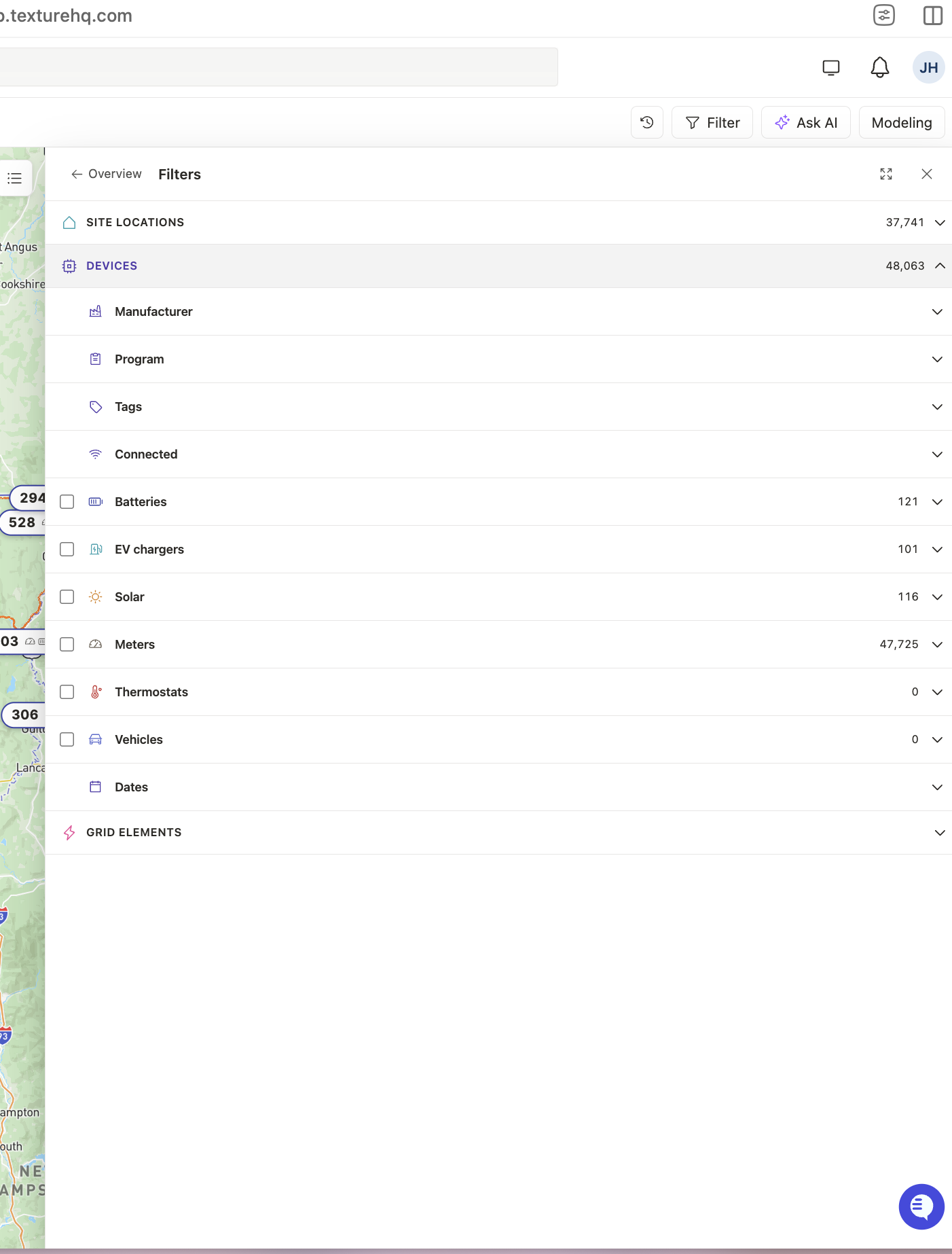
Add a filter. Click Add filter, pick what to filter on, and choose your values. You can filter by device attributes (type, tag, program) or by grid-element attributes such as substation, phase, or rated kVA.
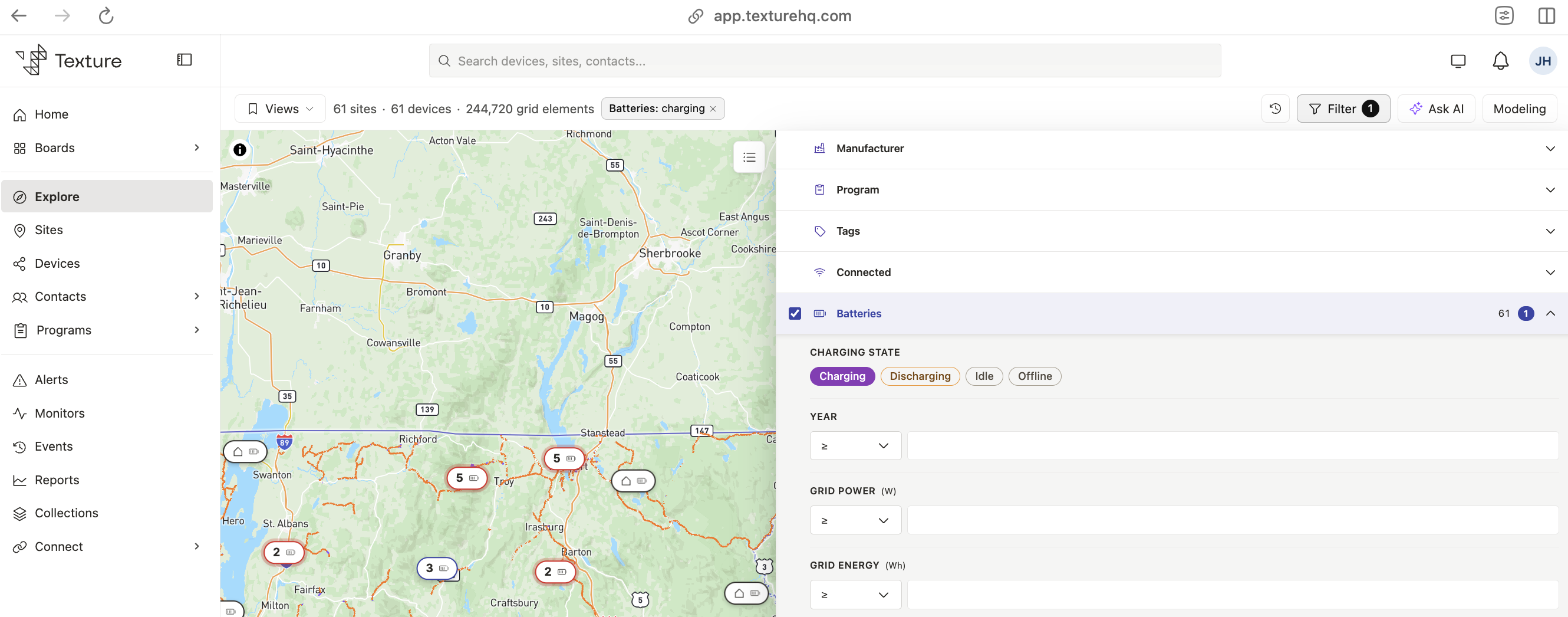
Stack filters to narrow further. Add as many as you need — they combine, so results match all of them. Each filter appears as a pill at the top.
Watch everything update. The map, the list / table, and the summary all reflect your filters automatically — no need to refresh.
Adjust or clear. Remove one filter by clicking the × on its pill, or clear them all to start fresh.
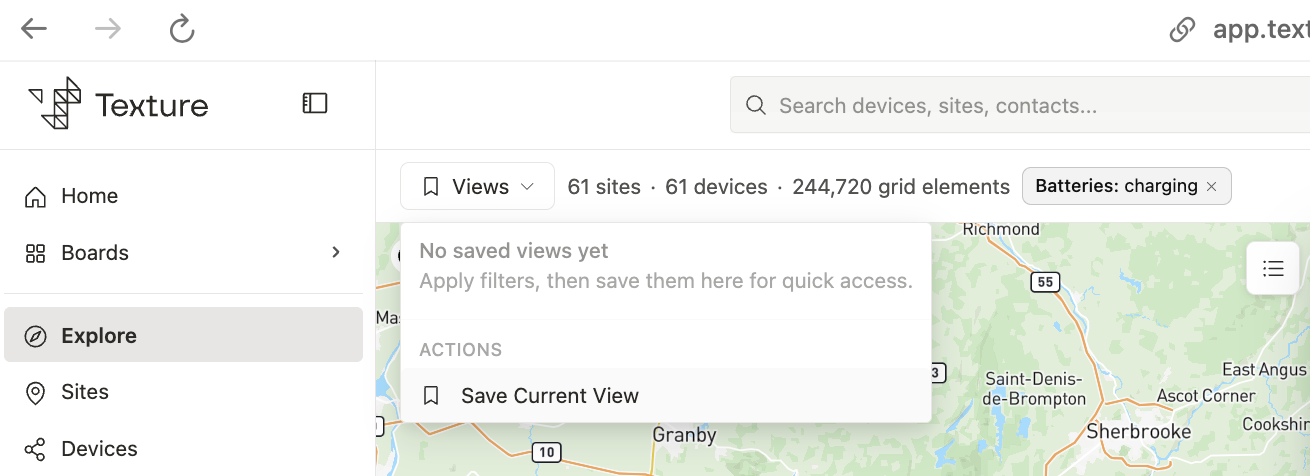
(Optional) Save it as a view. Save your filter set as a view so you can return to it later without rebuilding it.
Good to know
Search looks everywhere. The global search bar isn't limited by your filters — use it to jump to anything, even outside your current filtered view.
Filters vs. map layers. Filters decide which data you're working with; the map-layer controls (lower-left) decide what's drawn on the map. They're separate, so you can filter and still toggle layers.
Your filters are your own. Filter selections and saved views are tied to your account — changing them doesn't affect teammates.
Finding the table & export. The table view and CSV export live in the overview, not the filter drawer. Close the filter drawer to return to the overview (your filters stay applied), then open the table to export exactly the set you filtered.
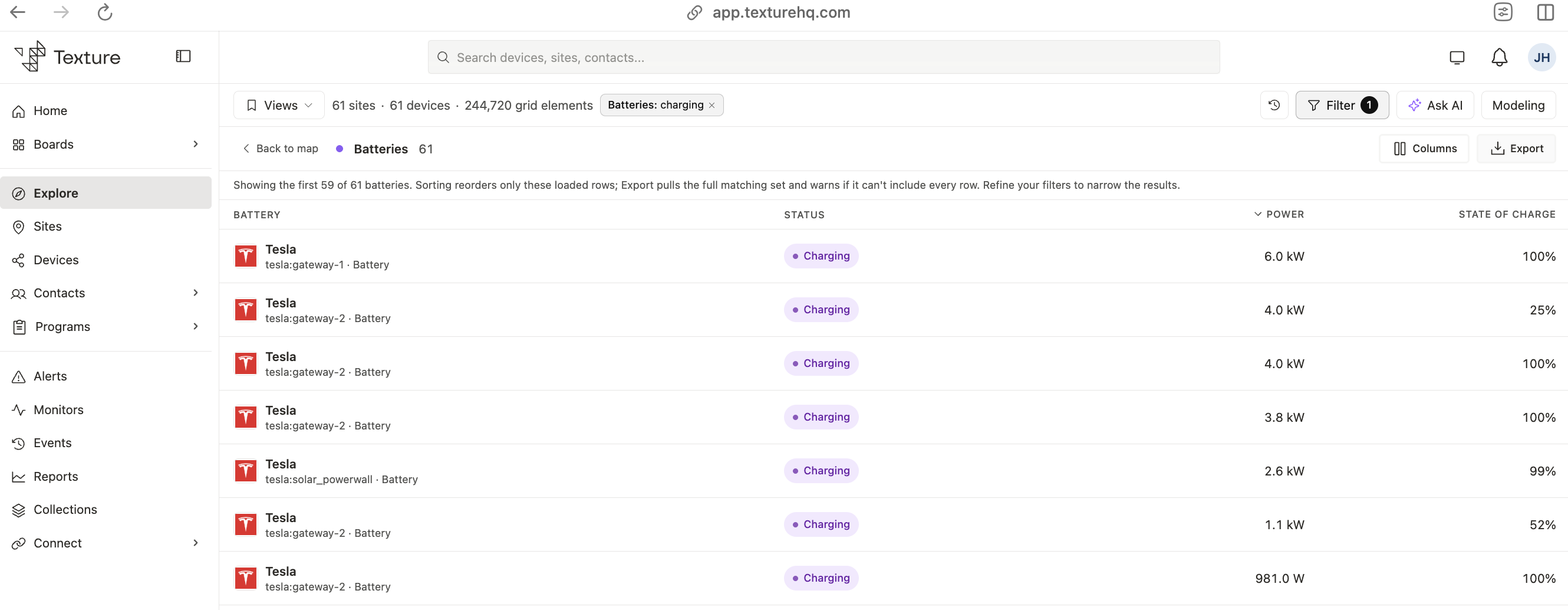
Export what you filtered. Switch to the table view and export a CSV — it includes exactly the set your filters define.